

Viewing the list of Charges
To view the list of Charges:
- Sign in to the Operator Control Panel.
- On the Navigation Bar, go to Charges (see Navigation). The list of Charges is displayed.
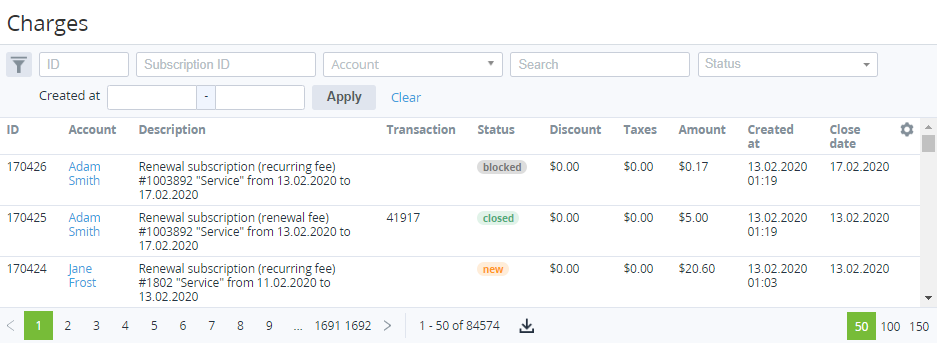
The following sections are displayed:- Top bar (for more information, see Working with the List of Objects).
- List of Charges — a table with the following columns:
- ID — a unique identification number of the Charge.
- Account — a name of the Account, for which the Charge was generated.
- Description — detailed information about the Charge.
- Transaction — an ID of a Transaction that is related to the Charge. It is displayed only for the Charges with Closed or Refunded statuses (see Viewing the List of Transactions).
Status — current status of the Charge (for details, see Charges attributes).
Order — the link to the related Order or a dash — if a Charge is not linked to an Order. By default, not displayed.
Quantity — the number of Resource units or Service. By default, not displayed.
Duration — the period covered by a Charge or a dash — for Subscriptions with the Pay as you go (external) billing type. By default, not displayed.
Unit price — the Resource unit price or the period price — in the Plan currency, or a dash — for Subscriptions with the Pay as you go (external) billing type. By default, not displayed.
Currency rate — the currency rate applied to a Charge to convert its amount from the Plan to Reseller currency, or a dash — if the currencies match. By default, not displayed.
Discount — discount amount.
The amount of the Order and the amounts of the Charges are rounded off to two decimal places. When a discount is applied, this may lead to a discrepancy between the amount of the Order and the amounts of the Charges for the Subscription. To avoid this, rounding off and applying a discount to the amounts of the Order and Charges is performed according to a special algorithm (see Specifics of Orders and Charges amounts calculation and rounding when a discount is applied).
- Taxes — taxes amount for the Charge. Manager can add taxes only within the Postpay model (see Add taxes in the API reference guide).
- Amount — the total amount of the Charge with taxes and discount included.
- Created at — date and time of the Charge creation.
- Close date — an actual or supposed date when the Charge receives the Closed status.
Using API, it is also possible to retrieve the start day of a Billing period related to a closed Charge and filter the list of Charges by this date (check billing_day in section Charges of the API reference guide).