

Microsoft Azure. "Charges" section
Charges section
To view the Charges section:
- Sign in to the Customer Control Panel.
- Move the mouse pointer to the Azure Entry Point on the Application Dashboard. The
 button is displayed in the lower right corner of the Entry Point.
 - Click . The Azure Entry Point menu is displayed.
- On the Entry Point menu click Charges. The Workspace displays the Charges page (see also -Subscription analytics).
- The Charges page contains the following elements:
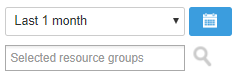
- Filters to select the required period and resource groups to display resources usage and expenses information;
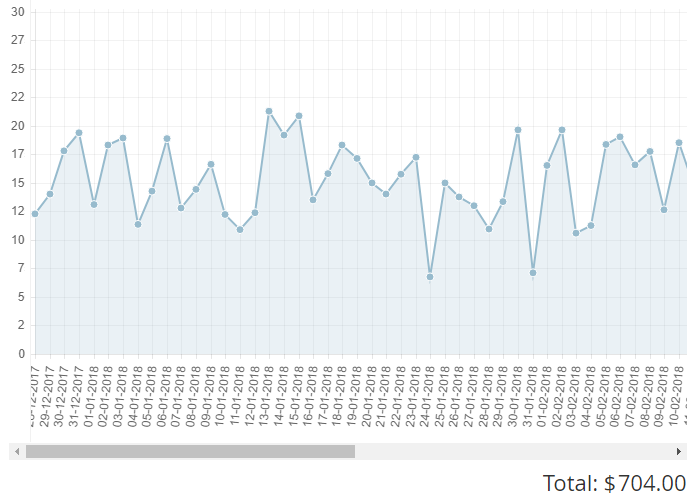
- The graph of the daily charge for the selected resource groups against time;
- The total amount of charge for the selected resources groups for the selected period;
- The
 button to download a CSV-file wtith information about Charges. The file contains data from the Consumed Resources table with applied filters.
 - The table with the Charges for each of the selected Groups for the selected period. The table lists the following information:
- Name — name and information of a Resource included in a Resource Group;
- Resource Group — Resource Group name;
- Price, $/hour — Resource fee per hour;
- Discount, $ — the discount amount for the selected period;
- Duration, resource-hour — total number of hours the Resource was used;
- Total, $ — total Charge amount for the Resource, discount included.
- Filters to select the required period and resource groups to display resources usage and expenses information;
Using filters
You can use the following filters to display information about your expenses:
- Time period to show on the graph and to calculate the expenses;
- Required Resource Groups.
Selecting the time period
You can select the required period using the list box with the predefined values (last month, last three months, last six months, last 12 months), or using the  to select a custom time period.
The graph and the table are updated automatically after changing the time period.
Selecting the Resource Groups
You can view your expenses for each Resource Group for the selected time period. To select the required Resource Groups:
- Click Selected resource groups to view the full list of Resource Groups. You can start typing the name of a Resource Group to filter the list.
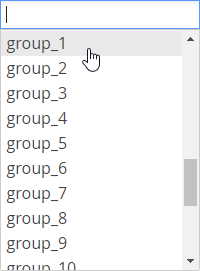
Click the required Resource Group. Click the list box again to add another Resource Group.
To exclude a selected Resource group, click
 .
.- Click
 to update the graph and the table.
Working with the graph
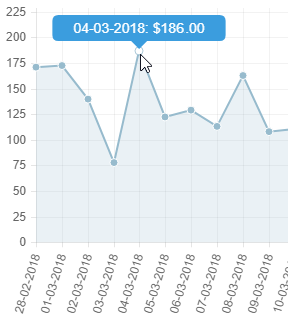
The Charges graphs allows you to see the daily amount of expenses for the selected Resource Groups. Move the mouse pointer to a point on the graph. The screentip with the date and the amount of a daily charge appears.
Working with the table
You can sort the table by clicking one of the column headers.