
All users can create a request for quote in the Customer Control Panel via the Request for quote link in the upper right corner.
You can also create a request for quote when ordering a new subscription (see Buy subscription) or in the catalog (see Catalog) if self-ordering a subscription is not available:
-
On a product page with no plans.
-
In the card of a specific plan (the Contact to buy button).
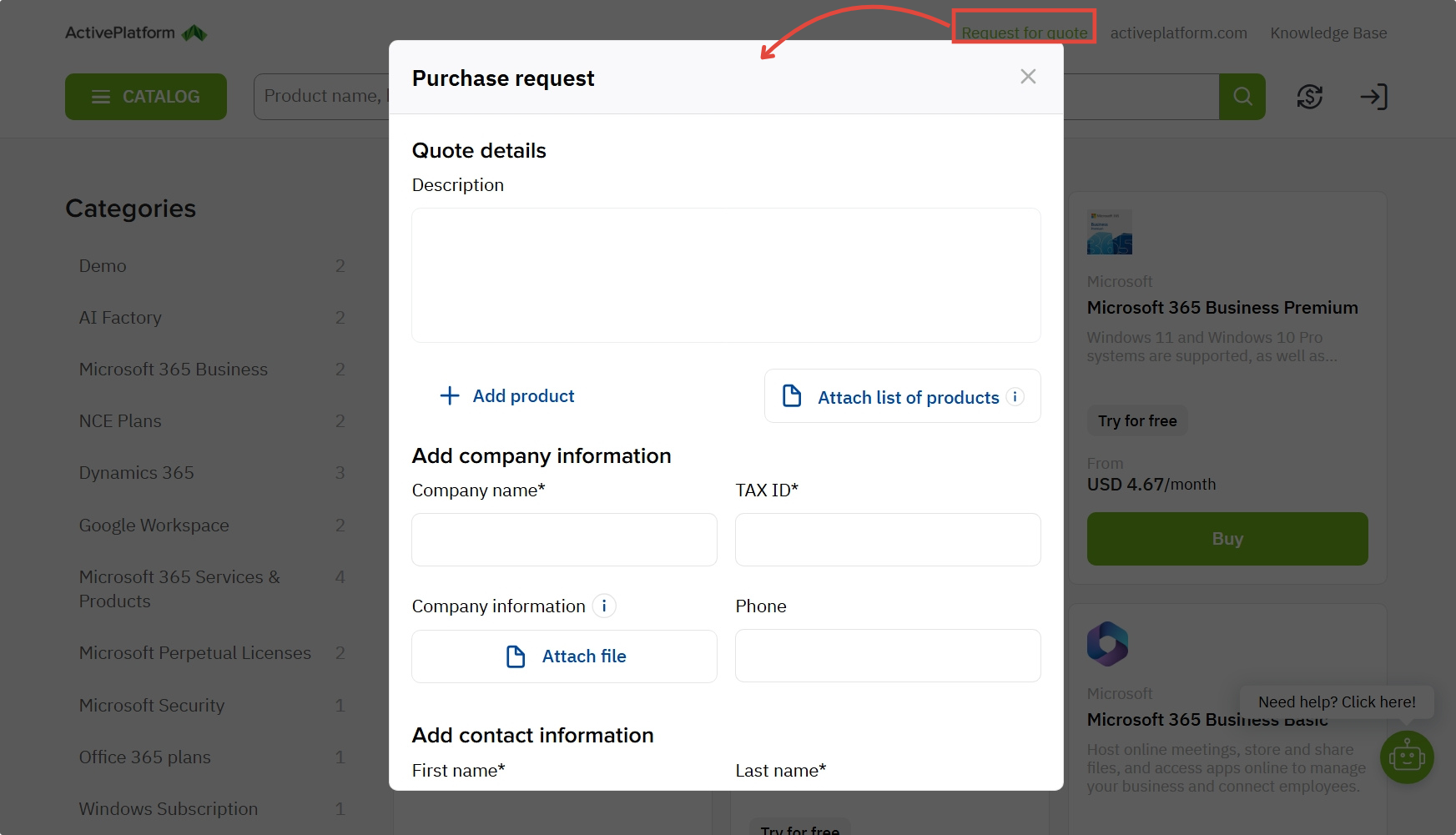
In the Purchase request form, you will need to provide the following information:
-
Request description.
-
Add products from the catalog or attach a file.
The uploaded file must be no larger than 3 MB.
The following formats are supported: pdf, doc, docx, xls, xlsx, ppt, pptx, txt, csv.
To add a product from the catalog:
-
Click Add product. A new parameters line will be displayed.
-
In the Product list, select the required product.
You can search by ID and name among all products in the catalog (see Catalog). -
Next to the product name, enter the required quantity.
-
(Optional) To add another product, repeat the steps. The maximum is 30 products.
-
(Optional) If you need to delete a product, click the trash icon next to the quantity field.
-
Add company information.
-
Add contact information.
-
Select the I agree… checkbox.
Depending on whether your current user is associated/not associated with an account or not registered in the Customer Control Panel, you may need to provide different information.
Once created, the request will be sent to the reseller, and registered users will be able to see it in the Quotes list (see View the list of quotes).