

Viewing Payment details
To view the Payment details:
- Sign in to the Operator Control Panel.
- On the Navigation Bar, go to Payments (see Navigation). The list of Payments is displayed (see Viewing the list of Payments).
- Click the ID or number of the required Payment. The Payment details page is displayed.
The Payment details page includes the following tabs:
- General — the general information about the Payment:
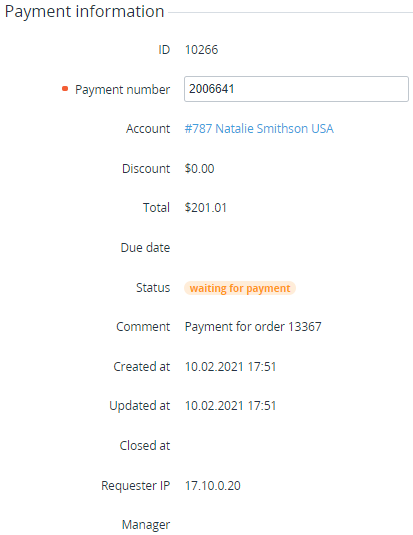
- Payment information:
- ID — unique identification number of the Payment.
Payment number — number of the Payment.
Payment number in not available for changing in the following cases:
- The Payment is in the Completed or Cancelled status.
- In the System settings, the Allow editing a payment number checkbox is not selected (see General system settings).
- Account — name of the related Account.
Discount — amount of the discount.
Discounts are displayed only for the Payments that are related to an Order. For all other types of Payments (see Payment types), the zero value is displayed.
- Total — total amount of the Payment in the platform in the Reseller currency. Total does not depend on External total.
External total — if managing Invoices for the Postpay model by a third-party ERP system is activated (see Managing Invoices for the Postpay model by a third-party ERP system), may display the amount and currency of a third-party invoice after the Invoice approval.
If the amount and currency of External total differ from the amount of the Payment in the platform and the Reseller currency, a customer cannot pay for it from the Account balance. Only other payment methods are available, including ones based on payment gateway connectors (see Managing Payment gateway connectors). On a payment method page (see Payment methods), the External total amount is displayed to a customer. The amount of the Payment in the platform does not change even after paying.
The Due date is displayed for Payment for rendered Services only (see Payment types). The Due date is not set if the Payment is linked to an Invoice to be approved by a third-party ERP system. After approving the Invoice, the third-party ERP system sets the Due date automatically (see Managing Invoices for the Postpay model by a third-party ERP system).
Status — status of the Payment (for details, see Payment types).
- Comment — additional information about the Payment. If managing Invoices for the Postpay model by a third-party ERP system is activated (see Managing Invoices for the Postpay model by a third-party ERP system), the comment includes the amount and currency of a third-party invoice after the Invoice approval.
- Payment purpose — information about the top-up Payment to display in the receipt (see Creating a Payment manually).
- Created at — date and time of the Payment creation.
- Updated at — date and time of the last changes.
- Closed at — date and time when the Payment got the Completed or Canceled status.
- Requester IP — IP address of the payer.
- Manager — Manager responsible for processing the Payment.
- Invoices — table that includes links to the related Invoices (see Managing Invoices). This section is shown only if the payment has a linked Invoice, regardless of the Payment status. The table includes the following columns:
- ID — a unique identification number of an Invoice.
- Description — Invoice number as a link to its details page.
- From — start date of the Invoice period.
- To — end date of the Invoice period.
- Status — one of the following statuses of the Invoice:
- Closed — the Invoice was closed.
- Open — an Invoice was created and is yet to be closed.
- Amount — a total amount of the Invoice in the platform in the Reseller currency. Amount does not depend on External total.
- External total — if managing Invoices for the Postpay model by a third-party ERP system is activated (see Managing Invoices for the Postpay model by a third-party ERP system), may display the amount and currency of a third-party invoice after the Invoice approval.

Order(s) — table that includes links to the related Orders and Subscriptions.
This section is shown only for Payments in the Completed, Paid from balance, or Cancelled statuses that are related to an Order.

Payment methods — selection of a Payment method (see Configuring Payment Methods).
This section is shown only if the Payment has the Waiting for payment or Expired statuses.

Balance — button for completing the Payment using the Account balance (see Completing a Payment).
- Pay — button for completing the Payment using the selected Payment method (see Completing a Payment).
- Payment information:
- Log — history of the Payment's changes (see Viewing the System Log).