
Configuring the validation service settings includes the following steps:
Configuring access to the ActivePlatform microservice
Before using the validation service, it is necessary to configure access to the ActivePlatform microservice.
To configure access to the ActivePlatform microservice:
-
Sign in to the Operator Control Panel on the root reseller level.
-
Go to Global Settings (see Navigation). The Global Settings page is displayed (see Global settings).
-
In the Validation Service Settings group, in the URL address field, enter the address to connect to the ActivePlatform microservice (for example, http://sanction_validator:8089).
-
Click Update.
Activating the validation service
Activating the validation service affects the current reseller level and all downstream resellers levels with delegated products.
To activate the validation service:
-
Sign in to the Operator Control Panel on the level of the required reseller.
-
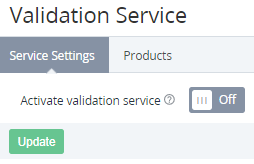
Go to Validation Service Settings (see Navigation). The Service Settings tab of the Validation Service page is displayed.
-
Turn On the Activate validation service switch.
-
Click Update.
After configuring access to the ActivePlatform microservice and activating the validation service, it is possible to manage the list of exceptions — products available for ordering without checking restrictions imposed to resellers and accounts (see Managing exceptions for the validation service).