
Late processing of manual operations can cause incorrect working of credit hold, credit limit, billing, activation, stopping, and renewal of subscriptions, and can lead to incurring of debt to a vendor.
To view a manual operation:
-
Go to Manual Operations (see Navigation). The list of manual operations is displayed (see Viewing the list of manual operations).
-
Click the ID or the View link of the required manual operation. The manual operation details page is displayed.
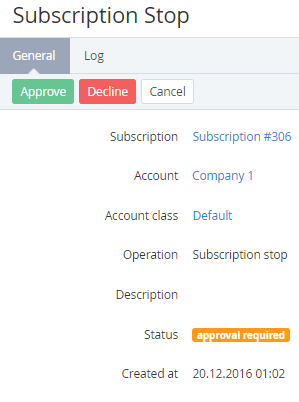
The manual operation details page includes the following elements:
-
Subscription — a link to the related subscription details page (see Viewing and updating subscription's details).
-
Account — the name of the related account (see Viewing and updating account's details).
-
Account class — the related account class (see Account classes).
-
Operation — the manual operation type (see Viewing the list of manual operations).
-
Description — additional information about the manual operation.
-
Status — the manual operation status (see Viewing and updating subscription's details).
-
Approved by manager — the name of a manager approved the manual operation. Only for manual operations in the Approved status.
-
Created at — the date and time when the manual operation is created.
-
To process a manual operation in the Approval required status, click one of the following buttons:
-
Approve — to approve a manual operation.
-
Decline — to decline a manual operation. For instance, as a result:After declining a Subscription stop or Subscription delete manual operation, the linked subscription gets back its previous status. Its Auto-renewal and Disable the Auto-renew option options get back their previous statuses, too.After declining an Application stop manual operation, the linked subscription based on the Manual Provisioning plugin gets the Stopping failed status.If a manual operation is linked to an order, the order gets the Provisioning failed status.
-
Cancel — to close the page and keep the manual operation status without changes.