
This functionality is not supported if your reseller set up logging in to the Customer Control Panel with an external account (see Log in to the Customer Control Panel).
Depending on your reseller and account settings, multi-factor authentication (MFA) may be required for registration, logging in, and password reset. This means that you will first need to download and configure an authenticator application. You will be prompted to do this when you log in to the Customer Control Panel with the MFA enabled for your account.
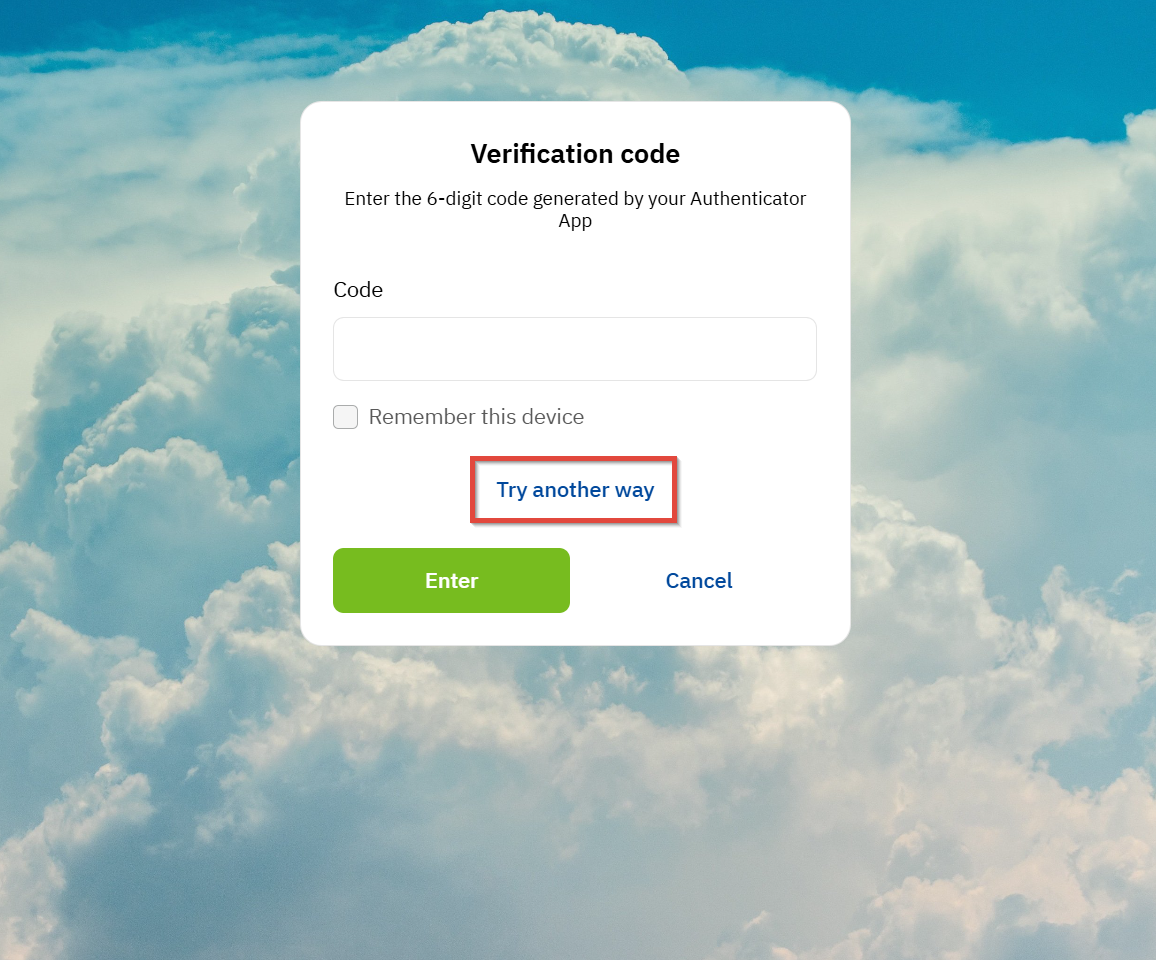
Once you configure the app, you will need to use the 6-digit code displayed in it every time after entering your email and password.
If you do not want to enter codes on every sign-in, you can select the Remember this device checkbox. The period and availability of this option depend on the reseller settings.
Alternatively, if you are not able to open your authenticator app, you can also use a fallback option:
-
Click Try another way.
-
In the list of methods, select Enter backup code.
-
Enter one of the backup codes you saved when configuring the authenticator app (the code you haven’t used before).
-
Click Enter.
For more information about MFA, see also MFA settings.