
To create an information page:
-
Go to Storefront (see Navigation). The General tab of the Customer Store Control Panel is displayed (see Customer Store general settings).
-
Go to the Pages tab. The list of information pages is displayed (see Viewing the information pages list).
-
Click Create. A page for creating a new information page is displayed.
The following character limits are applied to some fields on this page:
-
Page name, Meta description, Meta keywords: 256 characters.
-
Title: 128 characters.
-
-
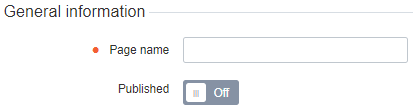
In the General information group:
-
In the Page name field, enter the name of the page.
-
Using the Published switch, set the publication status of the page. You can also change it later (see Publishing an information page).
-
-
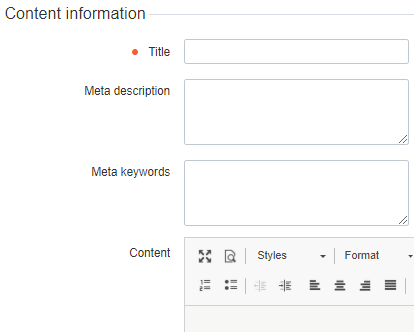
In the Content information group, enter the following information:
-
In the Title field, enter the page title.
-
In the Meta description field, enter the description of the page for search engines.
-
In the Meta keywords field, enter the list of page keywords for search engines optimization.
-
In the Content WYSIWYG editor, add the main content of the page. If necessary, switch to the source code view by clicking


-
-
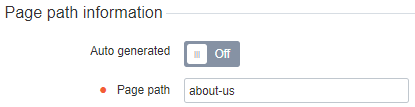
In the Page path information group, select how to create the page path:
-
-
To create the page path automatically, turn On the Auto generated switch. The Page path field becomes not available.
-
To create the page path manually:
-
Turn Off the Auto generated switch.
-
In the Page path field, enter the custom path to the page. Only letters, digits, and the "-" (hyphen) are allowed.
-
-
-
-
Click Create. The updated list of information pages is displayed