
To sign in to the Operator Control Panel with the manager's credentials (see Staff management):
-
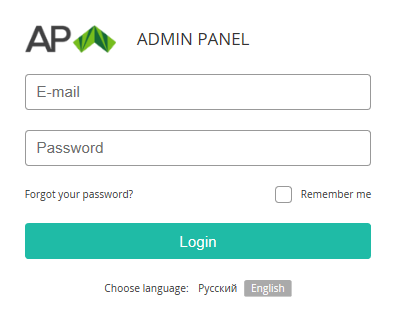
Go to the admin sign-in page of the Operator Control Panel.
-
Enter the manager's email and password. If you use a public device, do not select the Remember me checkbox.
-
Click Login. Depending on the MFA settings of the reseller (see
Manager settings) and manager (see
Configuring manager's MFA methods), the second authentication step may be displayed:
-
If required, follow the instructions and configure your authenticator application. For details, see Adding an MFA method.
-
Confirm your identity:
-
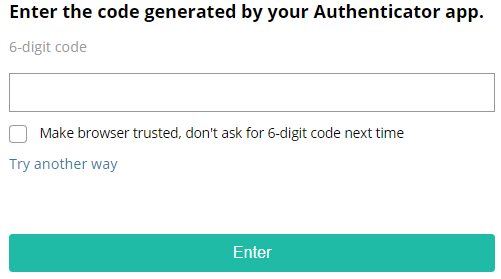
Enter the 6-digit code displayed by your authenticator application.
-
Alternatively, if you cannot open your authenticator application, use a fallback option:
-
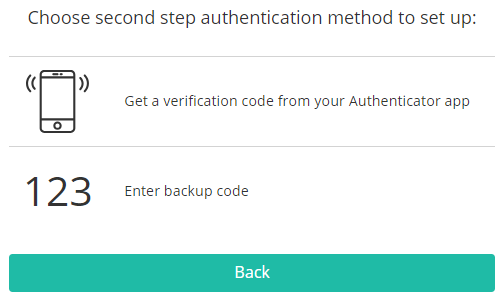
Click Try another way.
-
In the list of methods, select Enter backup code.
-
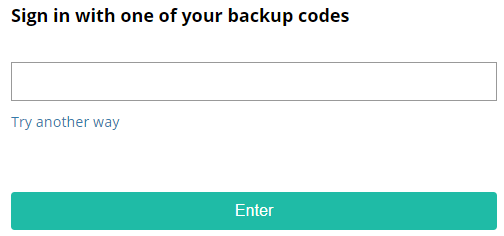
Enter one of your backup codes never used before (see also Generating backup codes).
-
-
-
If you do not want to enter codes on every sign-in, select the Make browser trusted, don't ask for 6-digit code next time checkbox. The period and availability of this option depend on the reseller settings (see Manager settings).
-
As a result of the successful signing in, the main page of the Operator Control Panel is displayed (see Main page).