
To view information about an agreement:
-
Go to Agreements. A list of agreement types is displaced (see Viewing the list of agreements).
-
Select the required agreement type. A list of agreements of the selected type is displayed.
-
Select the required agreement. A page with several tabs is displayed:
-
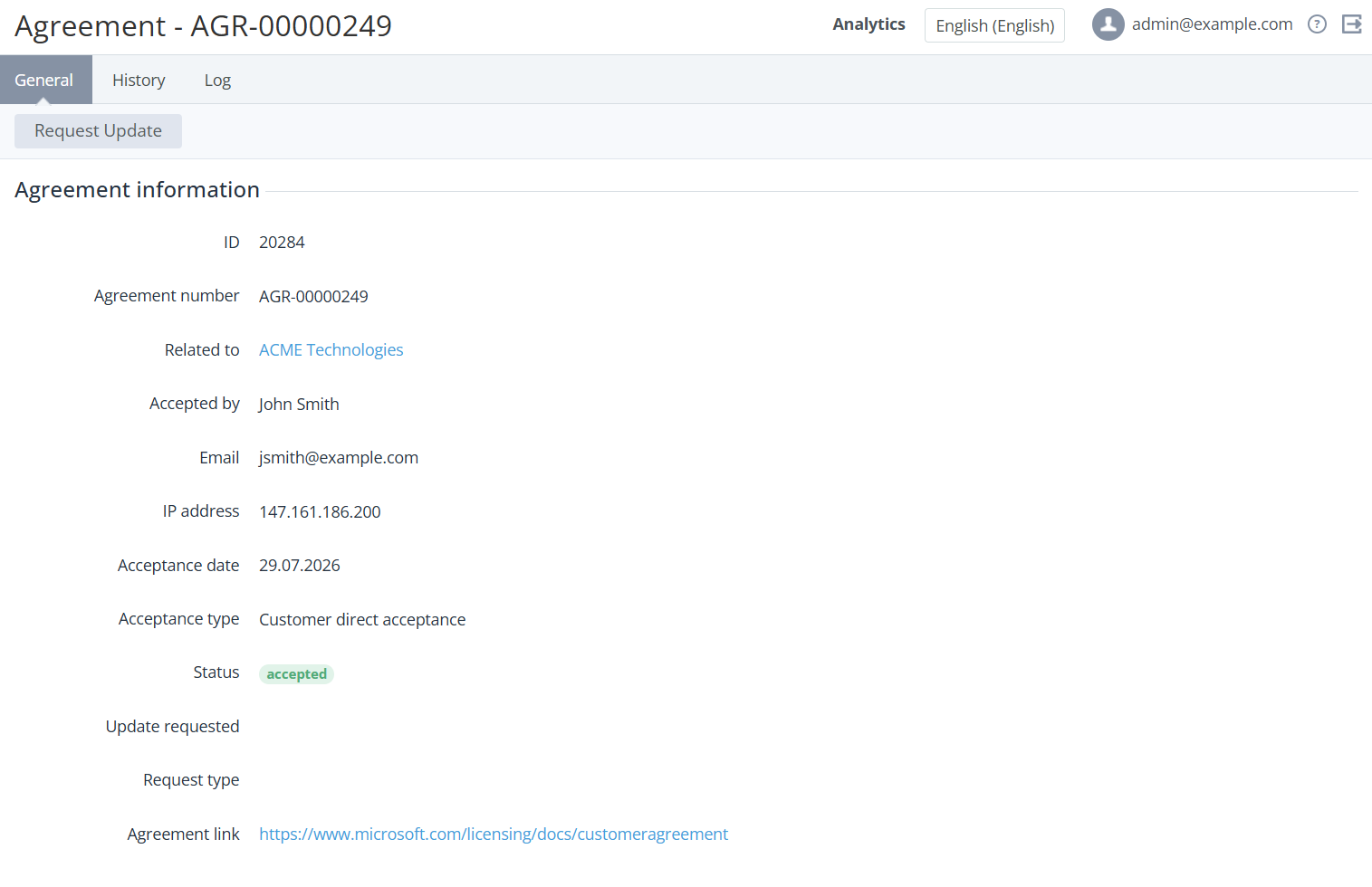
General.
-
ID — a unique identifier of the agreement.
-
Agreement number — the number of the agreement by template (see General system settings).
-
Related to — the name of the customer’s account or user, displayed as a link to its details page (see Viewing and updating account's details and Viewing and updating user information).
-
Accepted by — the name of the customer’s user who accepted the agreement.
-
Email — the email address of the user who accepted the agreement.
-
IP address — the IP address of the user who accepted the agreement.
-
Acceptance date — the date when the agreement was accepted.
-
Acceptance type — the type of the agreement acceptance:
-
Customer direct acceptance — the agreement was accepted when creating/adding a Microsoft tenant in the Operator Control Panel.
-
Partner attestation — the agreement was accepted in the process of buying a subscription or authorizing in the Customer Control Panel.
-
-
Status — the status of the agreement:
-
Accepted — the agreement has been accepted.
-
Waiting for accept — the agreement has been created or an update has been requested, but it has not yet been accepted.
-
-
Update requested — the date when the most recent update request for the agreement was made (if any).
-
Request type — the type of the update request (see Requesting agreement update):
-
Manually — a manager manually requested an agreement update.
-
Automatically — an agreement update was requested on a scheduled basis.
-
-
Agreement link — a link to the agreement. Depending on the agreement type, these links are set either in the platform’s system settings (see General system settings) or in the Microsoft integration settings.
-
-
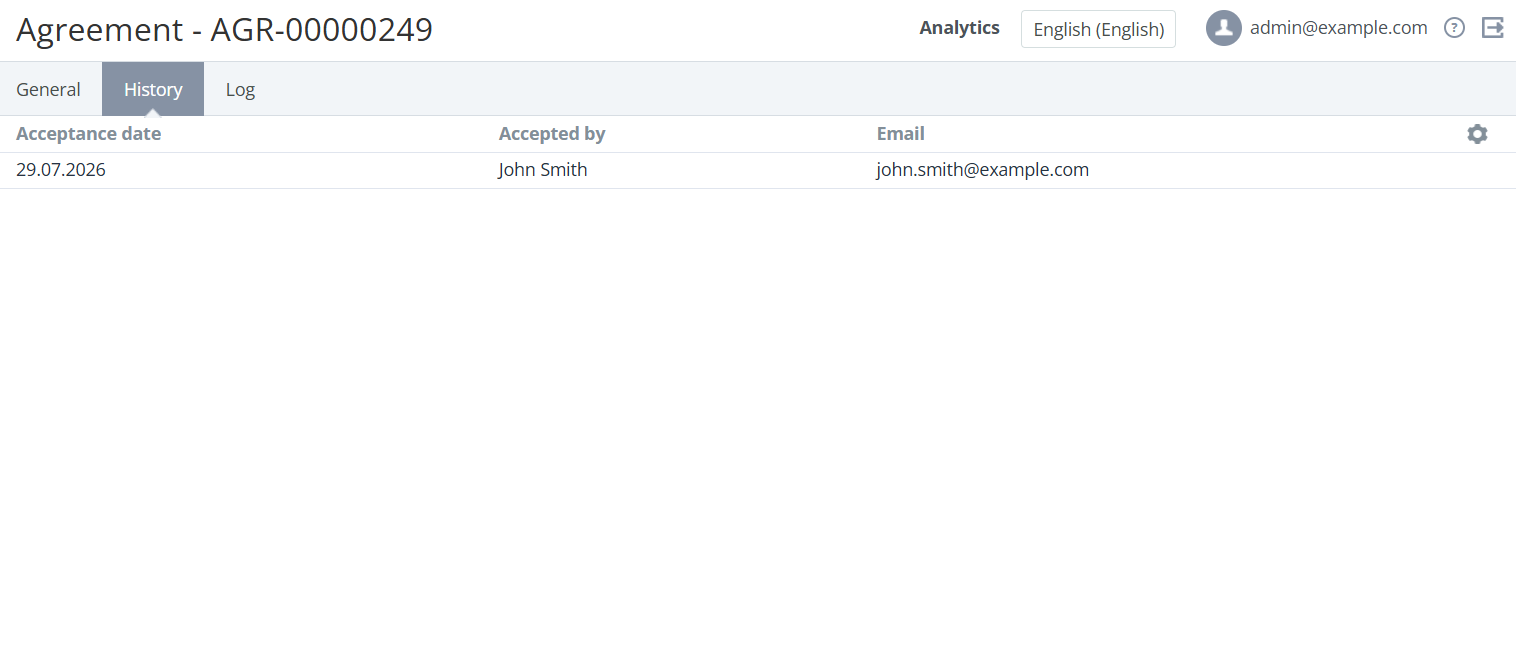
History — the history of agreement acceptances.
-
Acceptance date — the date when the agreement was accepted.
-
Accepted by — the name of the customer’s user who accepted the agreement.
-
Email — the email address of the user who accepted the agreement.
-
-
Log — see Viewing an object log.