

Creating an Account's User
To create a new User for an Account:
- Sign in to the Operator Control Panel.
- On the Navigation Bar, go to Accounts (see Navigation). The list of Accounts is displayed (see Viewing the list of Accounts).
Click the ID or name of the required Account. The Account details page is displayed (see Viewing and updating Account's details).
- Go to the Users tab. The list of Users attached to the selected Account is displayed (see Managing Account's Users).
- On the Toolbar, click Create User. A new User creation page is displayed. In the Account information group, the Account name for a new User is displayed.
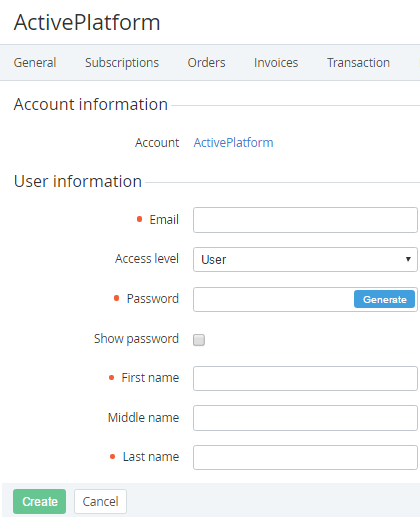
- In the User information group, enter data in the following fields:
- Email — an email which will be used as the login for the Customer Control Panel.
- User — minimum privileges, can only access Services assigned by Admin or Owner.
Finance manager — can pay Payments but cannot cancel them.
The current version of the Customer Control Panel does not support the Finance manager access level.
- Administrator — can manage Subscriptions and other Users except Owner.
- Owner — maximum privileges. An Account can have only one User with the Owner access level. If selected, the current Owner of the Account will get the Admin access level.
- Password — the password for the Customer Control Panel. To generate the password automatically, use the Generate button. To show the password, select the Show password checkbox. The password requirements are configured in the Password Settings section (see Password Settings):
- First Name, Middle Name and Last Name — the User's full name.
- If displayed, the fields of custom Attributes (see Viewing the list of Attributes).
- Click Create. The new User is created and displayed in the list.