
To set a new password to the Customer Control Panel:
-
Click the user name in the upper right corner on any page. The user menu is displayed.
-
In the user menu, select My profile. The user details page is displayed (see My profile).
-
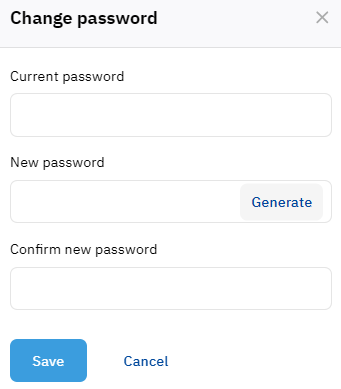
In the Password group, click Reset password. The Change password page is displayed.
-
In the Current password field, enter the password you use now to access the Customer Control Panel.
-
In the New password and Confirm password fields, enter the new password. If the password is too simple, a hint will appear with the requirements and the result of their verification. Also, the password cannot contain spaces.
Click Generate to create a strong password automatically.
-
Click Save. The user details page is displayed with a message about whether the password is changed.