
To create a promo code manually:
-
Go to Discounts. The list of discounts is displayed (see Viewing the list of discounts).
-
Click the ID or name of the required Promo Code discount. The discount details page is displayed (see Viewing and updating discount details).
-
Go to the Promo Codes tab. The list of promo codes of the selected discount is displayed (see Viewing the list of promo codes).
-
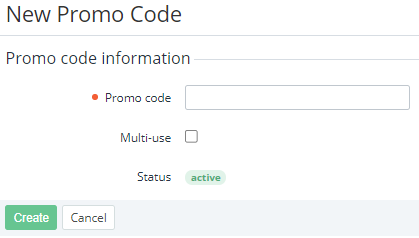
Click Create. The New Promo Code page is displayed.
-
In the Promo code field, enter a code that will be used to get a discount.
-
If it is necessary that this promo code can be used more than once, select the Multi-use checkbox,
Multi-use promo codes require Subscription limit > 1 in the subscription settings (see details in Creating a Promo Code discount).
-
Click Create. The promo code will be created and displayed in the list.