
If a manager's password is lost or forgotten, it is possible to reset the password and recover access to the Operator Control Panel as follows:
-
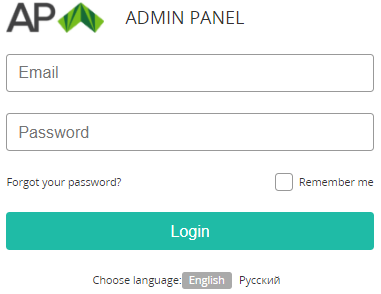
Go to the admin sign-in page of the Operator Control Panel.
-
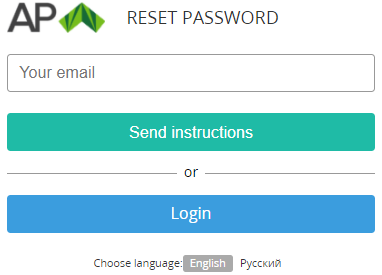
Click Forgot your password?. The Reset Password page is displayed.
-
Enter the email that is used as the manager's login.
-
Click Send instructions. A message with instructions on how to reset your password will be sent.
-
Check the inbox folder. If necessary, check the spam folder.
-
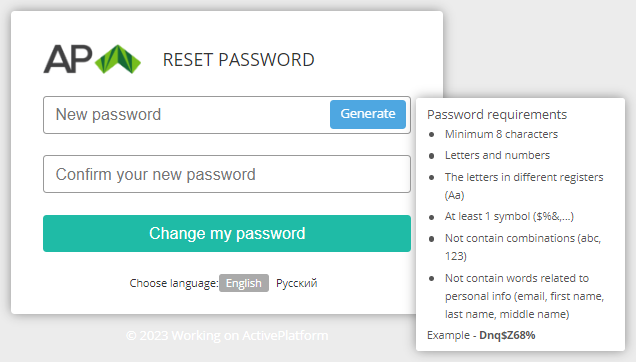
In the received message, click the link to reset the password. The Reset Password page is displayed.
-
In the New password and Confirm your new password fields, enter the new password . The password requirements are displayed in the tip (see Password settings). When a requirement is satisfied, the corresponding item is highlighted.
Do not use the password from the example in the tip. Instead, click Generate to create the password automatically.
-
Click Change my password. The main page of the Operator Control Panel is displayed (see Main page).
See also Resetting a manager's password.