
The full registration procedure includes creating a new account. An account is required to place orders and make payments for subscriptions. Its information is used in financial documents.
You can create an account right after quick registration or when purchasing a subscription (see Buy subscription).
To complete full registration:
-
Start by doing one of the following:
-
Click on the profile initials in the top-right corner to open the user menu and select Accounts > Create an account (see User menu).
-
When purchasing a subscription, on the Choosing account step (see Buy subscription), select New account.
If your current user does not have any suitable associated accounts, the New account option is selected by default.
-
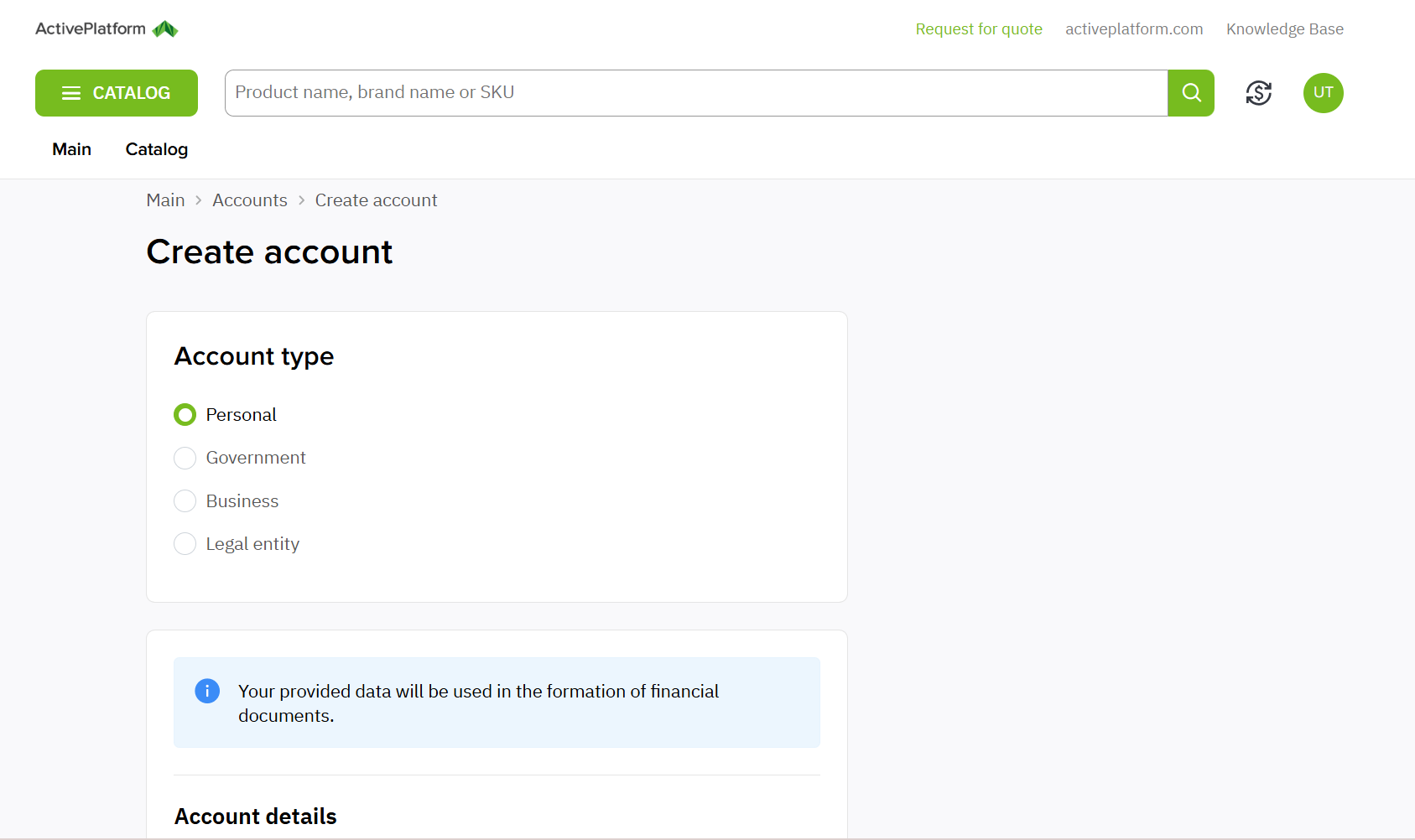
The account creation form will be displayed.
-
In the Account type section, select the account type.
Available options may depend on the subscription (if you are creating an account from the purchase subscription form). -
In the Account details section, the Enter new data option will be selected by default. Below, you will need to specify the account details.
The Enter exist account data option is available only if you have an associated with your user account.
Entering an address in certain regions may not be available. In addition, the reseller may restrict the selection of countries and the use of special characters, abbreviations, and top-level domains (TLDs) in the company name.
-
Next, specify Tenant ID in the Microsoft section (if applicable).
-
Provide additional required information in the Company info section (such as VAT ID, SMS Phone, and others).
-
If the reseller requires, read the terms of service and confirm you agree:
-
Follow the link to read the text of the document.
-
Select the checkbox.
-
-
To finish, click Create an account.
If you are creating an account from the purchase subscription form, complete order creation.
The created account appears in the list of all accounts. Your current user becomes its Owner.