
The export and import permissions feature allows you to quickly configure and transfer role settings without manually adjusting each permission in the interface.
Using the Export button, you can download the current role configuration as an XLSX file.
This file contains a complete list of permissions across all sections configured for the selected role.
It can be used as a template or a backup.
The Import button allows you to upload a prepared or edited XLSX file and automatically apply the specified permissions to the current role.
This significantly reduces the time required to configure roles, especially when the same setup needs to be replicated across multiple resellers.
You can quickly create roles based on an existing permissions list using an XLSX file and the export and import features:
-
Go to Roles (see Navigation). The list of roles is displayed (see Viewing the list of roles).
-
Click the ID or name of the role you want to use as the source for the permissions list. The role’s details page is displayed (see Viewing and updating a role).
-
Click Export. An XLSX file containing the permissions for this role is automatically downloaded.
-
If necessary, update the permissions in the file. When editing the file, note the following:
-
Do not edit the first column. It contains the system keys of the Operator Control Panel sections, in the same order as on the role’s page (see Viewing and updating a role).
-
In the second column, specify the access mode for each section of the Operator Control Panel:
-
no_access — corresponds to the No Access mode. The section is unavailable and not displayed.
-
read — corresponds to the Read Only mode. The section is displayed, but managing entities and changing data in it are not available. Not all sections support the Read Only mode (see Managers' roles).
-
control — corresponds to the Full Control mode. The section is displayed, and managing entities and changing data are available.
-
-
-
Start creating a new role (see Creating a role) or select an existing role you want to update (see Viewing and updating a role).
-
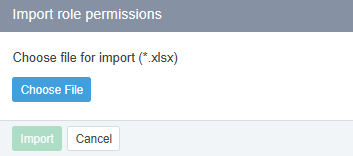
On the role’s page, click Import. The Import role permissions window is displayed.
-
Select the XLSX file with the permissions list and click Import. The permissions settings for the role are updated.
If the selected file contains invalid or unsupported data, a message is displayed listing the incorrect parameters.
-
Correct the data in the file or repeat the export to obtain a valid file.
-
Repeat the import.
During import, the system validates the file:
-
if required columns are missing, the import will fail;
-
if column names are incorrect, the system will display an error message describing the issue.
After a successful import, all role permissions are updated according to the data in the file.
Example: you configure a manager role for one reseller, export the file, and then import it for another reseller — all permissions will be applied automatically without the need for manual setup.