
If a product is added to the exceptions list of the validation service, ordering a subscription linked to this product is available without checking restrictions imposed to resellers and accounts.
For the exceptions list, the following rules are applied:
-
The exceptions list is used if only the validation service is activated for the current reseller (see Configuring the validation service settings).
-
The exceptions list can be configured on any reseller level.
-
Only products on the current reseller level are available for adding to the exceptions list.
In this article:
Adding a product to the exceptions list
To add a product to the exceptions list of the validation service:
-
Sign in to the Operator Control Panel on the level of the required reseller.
-
Go to Validation Service Settings (see Navigation). The Service Settings tab of the Validation Service page is displayed.
-
Go to the Products tab. The list of products included in the exceptions is displayed.
-
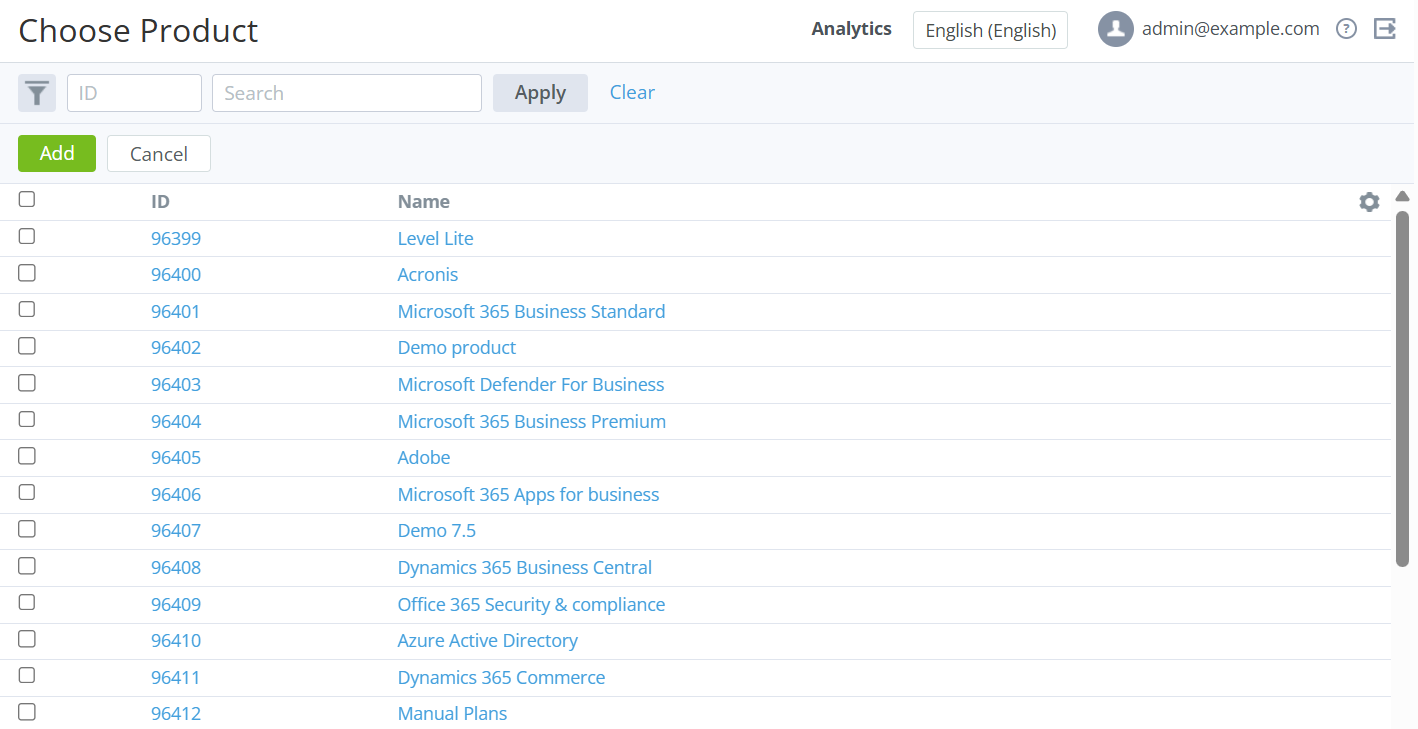
Click Add exclusion. The list of products available on the current reseller level is displayed (see Viewing the list of products).
-
Select the checkboxes of the required products:
-
To find a product, use the search by ID or partial match of the name.
-
To add all products at once, select the checkbox in the column title.
-
-
Click Add. The updated list of products included in the exceptions is displayed.
Removing a product from the exceptions list
To remove a product from the exceptions list of the validation service:
-
Sign in to the Operator Control Panel on the level of the required reseller.
-
Go to Validation Service Settings (see Navigation). The Service Settings tab of the Validation Service page is displayed.
-
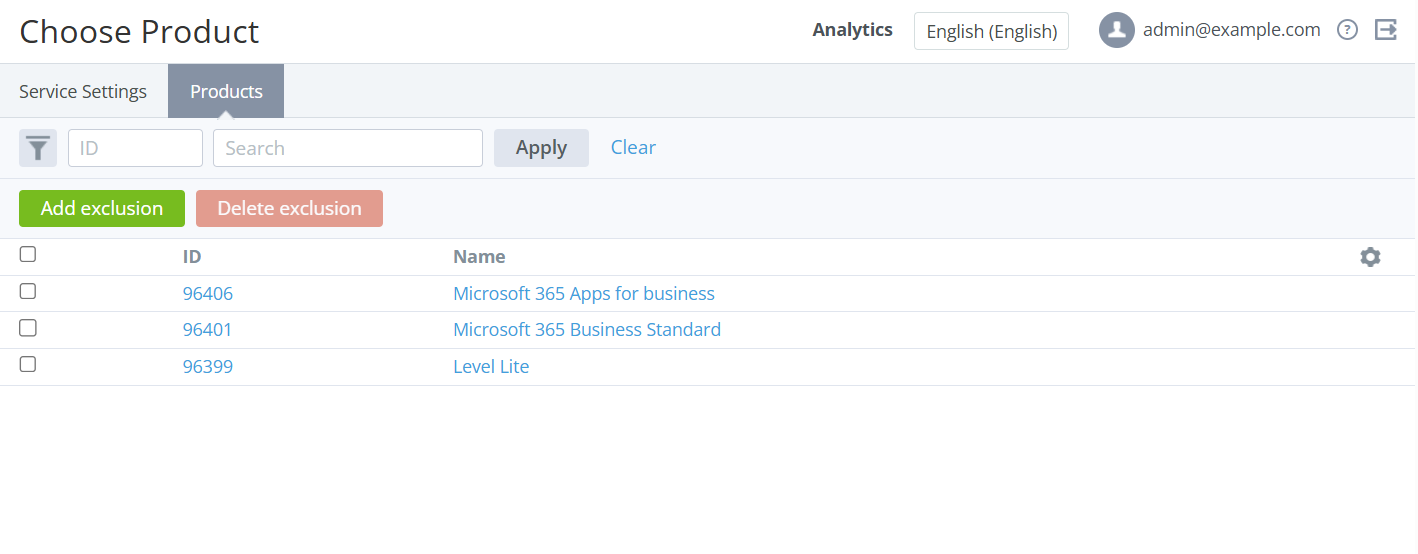
Go to the Products tab. The list of products included in the exceptions for the current reseller is displayed.
-
Select the checkboxes of the required products:
-
To find a product, use the search by ID or partial match of the name.
-
To remove all products at once, select the checkbox in the column title.
-
-
Click Delete exclusion. The updated list of products included in the exceptions is displayed.