
In this article:
Viewing vendor information
To view the details of a vendor:
-
Go to Vendors (see Navigation). The list of vendors is displayed (see Viewing the vendor list).
-
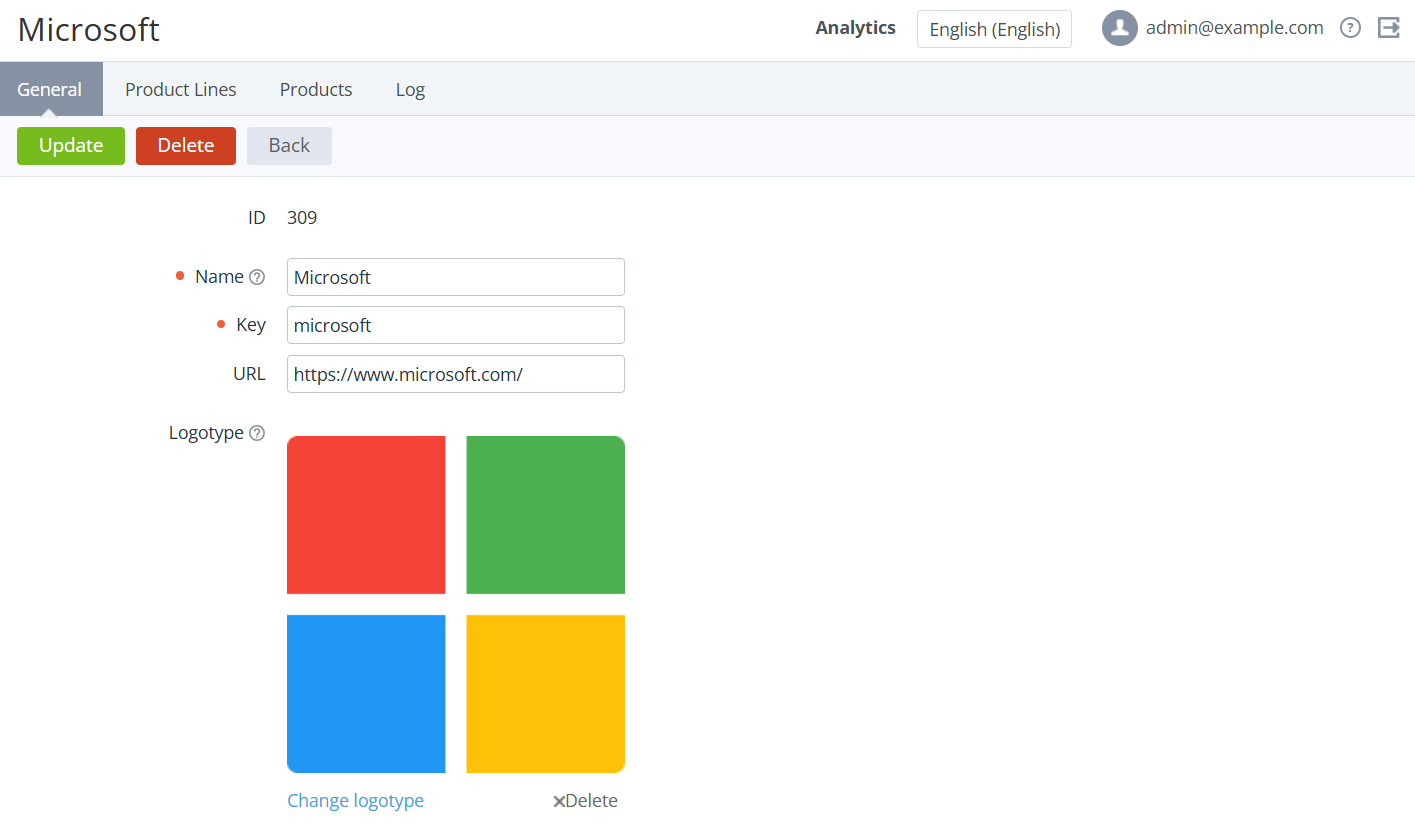
Click the ID or name of the required vendor. The vendor details page is displayed with the following tabs:
-
General info — information similar to the new vendor page (see Creating a new vendor).
-
Product Lines — the list of product lines linked to the vendor.
-
Products — the list of products linked to the vendor.
-
Log — the history of changes of the vendor details (see Viewing an object log).
-
Updating vendor information
Updating a vendor is only available on the root reseller level. Any changes are applied to all resellers and linked products.
To update the vendor details:
-
On the root reseller level, on the General info tab of the vendor details page, configure the vendor similarly to entering its information during the creation (see Creating a new vendor).
-
Click Update. The changes are applied to all resellers and linked products.
Viewing the list of product lines linked to a vendor
To view the list of product lines linked to a vendor, go to the Product lines tab of the vendor details page. A page with the list is displayed.
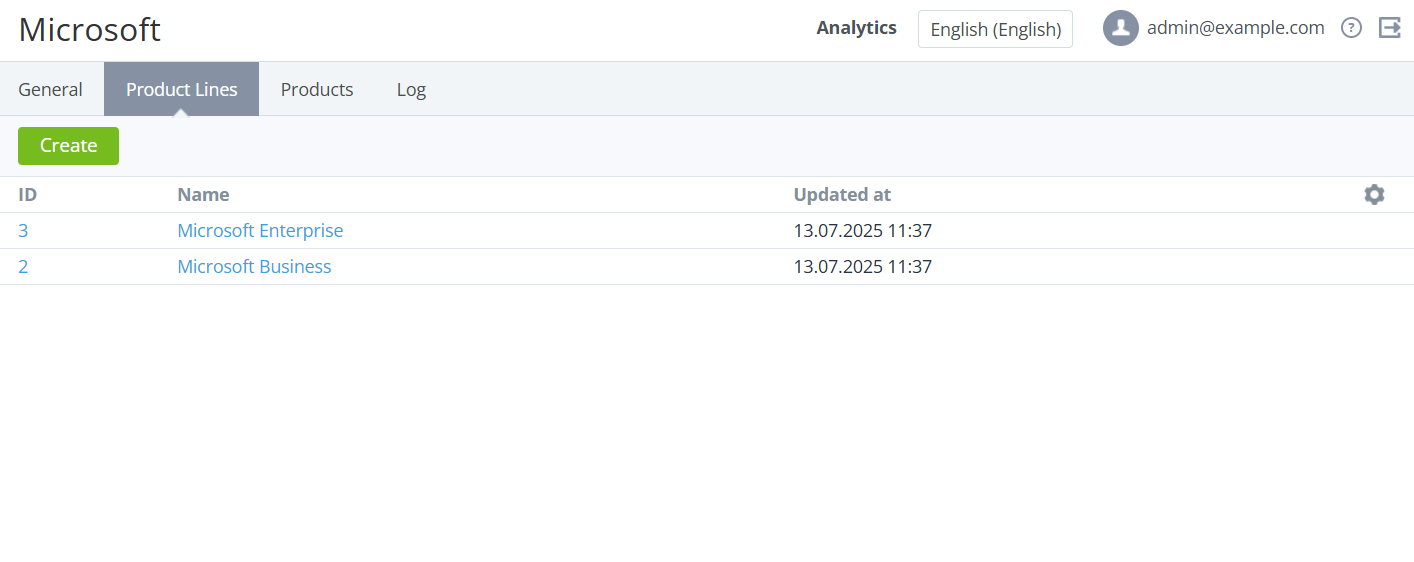
The list of product lines includes the following columns:
-
ID — the unique identification number of a product line.
-
Name — the name of a product line.
-
Updated at — the date and time when a product line was updated.
From the Product lines tab, you can create a new product line linked to the current vendor. Click Create and complete the steps described in Creating a product line.
Viewing the list of products linked to a vendor
To view the list of products linked to a vendor, go to the Products tab of the vendor details page. A page with the list is displayed.
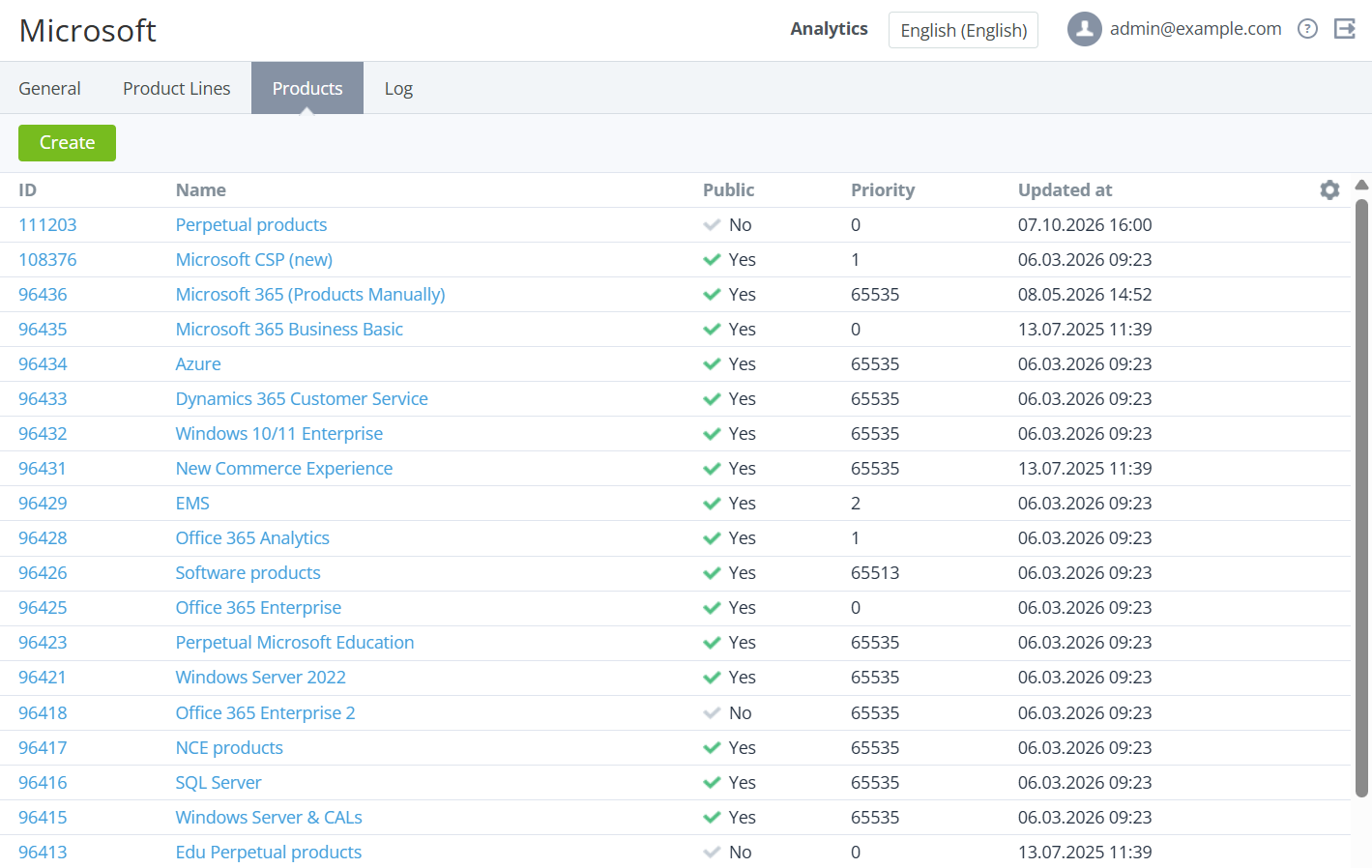
The list of products includes the following columns:
-
ID — the unique identification number of a product.
-
Name — the name of a product.
-
Product line — the link to the product line. By default, the column is not displayed.
-
Public — indicates whether a product is available for selling.
-
Priority — the position of a product in the list of products for customers. Products with a lower priority are displayed first. Products with Priority = 0 are displayed at the end. Products with the same priority are sorted by name (digits, from A to Z, from А to Я).
-
Updated at — the date and time when a product was updated.
From the Products tab, you can create a new product linked to the current vendor. Click Create and complete the steps described in Creating a product.
Deleting a vendor
Deleting a vendor is only available on the root reseller level. A vendor is deleted for all resellers and linked products.
To delete a vendor, on the root reseller level, on the General info tab of the vendor details page, click Delete and confirm the action. The vendor is deleted for all resellers and linked products. To assign a new vendor to a product, see Viewing and updating product information.