
To configure the user settings for accessing the Customer Control Panel:
-
Go to Security Settings (see Navigation). The Security Settings page is displayed.
-
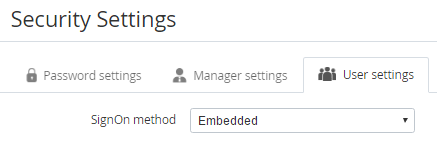
Go to the User settings tab.
-
In the SignOn method list, select one of the following authentication methods and configure the selected method:
Changing the authentication method terminates all active sessions of the Customer Control Panel users.
-
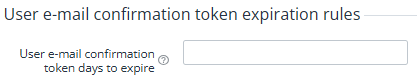
To set the period during which a new user can confirm the email, in the User e-mail confirmation token days to expire field, enter the number of days after which the confirmation token expires. If the field is empty, the confirmation token never expires, and a new user can confirm the email anytime after the registration.
-
Click Update.
OAuth 2.0
If the OAuth 2.0 authentication method is used, the following features are not available in the Customer Control Panel: configuring and using MFA, changing the password, and inviting users.
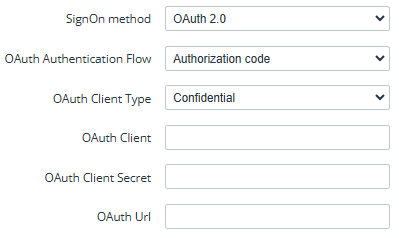
After selecting the OAuth 2.0 item in the SignOn method list:
-
In the OAth Authentication Flow list, select the authentication flow: Authorization code (by default) or Implicit.
-
If OAth Authentication Flow = Authorization code selected, in the OAuth Client Type list, select Confidential (by default) or Public.
-
In the OAuth Client field, enter the name of a client of the OAuth server.
-
If OAth Authentication Flow = Authorization code and Client Type = Confidential selected, in the OAuth Client Secret field, enter the secret key used by a client of the OAuth server.
-
In the OAuth Url field, enter the URL used to redirect a user on an attempt to sign in to the Customer Control Panel.
Embedded
Security settings that cannot be changed:
-
It is not possible to forbid the use of MFA.
-
After 5 unsuccessful login attempts, a user is blocked for 2 minutes.
-
The blocking period is doubled after every next 5 unsuccessful login attempts.
-
Unsuccessful login attempts at the first and second authentication steps are summed up.
-
The unsuccessful attempt counter is reset only after a successful login.
After selecting the Embedded item in the SignOn method list:
-
Skip the the Sign in via Google switch. The current version of the Customer Control Panel does not support signing in with Google.
The Sign in via Google switch is only available if all the Google SSO settings are specified in the global setting of the installation (see Global settings). See also Configuring access to the Customer Control Panel with Google (Google Cloud Identity).
-
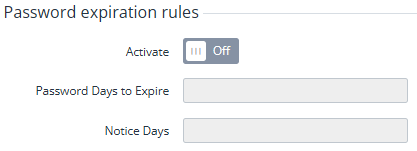
To configure the expiration rules of the password, set the following options in the Password expiration rules group:
-
Turn On the Activate switch.
-
In the Password Days to Expire field, enter the number of days when a user needs to change the password.
-
In the Notice Days field, enter the number of days before the password expiration when a reminder about the password expiration is displayed to a user on an attempt to sign in.
-
-
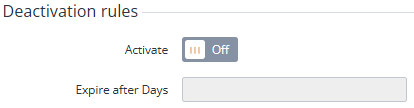
To configure the deactivation rules for a user, set the following options in the Deactivation rules group:
-
Turn On the Activate switch.
-
In the Expire after Days field, enter the number of days after the last signing in of a user when the user becomes deactivated.
-
-
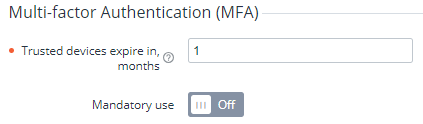
In the Multi-factor Authentication (MFA) group, configure how users of the Customer Control Panel use MFA on the second authentication step (see Вход в Панель управления Клиента):
-
In the Trusted devices expire in, months field, enter the period in months during which a device used by a user to log in to the Customer Control Panel is considered trusted, so the second authentication step is skipped. The default value is 1. The minimum value is 0 (devices are never considered trusted, so the second authentication step is displayed on every login attempt). The maximum value is 12.
-
With the Mandatory use switch, choose whether using MFA is required for all users of the Customer Control Panel. By default, the switch is Off, and every Owner can independently decide on using MFA for their account (see Аккаунты).
-
Session duration
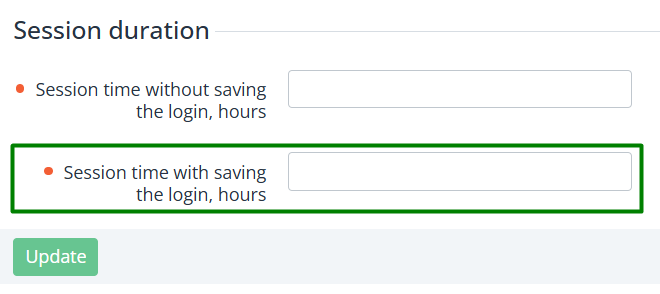
In the Operator Control Panel, under Security Settings for the User role, the Session Duration parameter group is available, allowing to configure the activity time of user sessions.
Session duration is the amount of time a user remains authorized on the system without re-entering their username and password. After this time, the session is automatically terminated, and the user must log in again.
After logging in, the duration of the user’s session depends on the authorization method selected, the activity in the platform, and the given parameters.
Parameters
The group includes two parameters: “Session time without saving the login (in hours)” (default value — 4) and “Session time with saving the login (in hours)” (default value — 12).
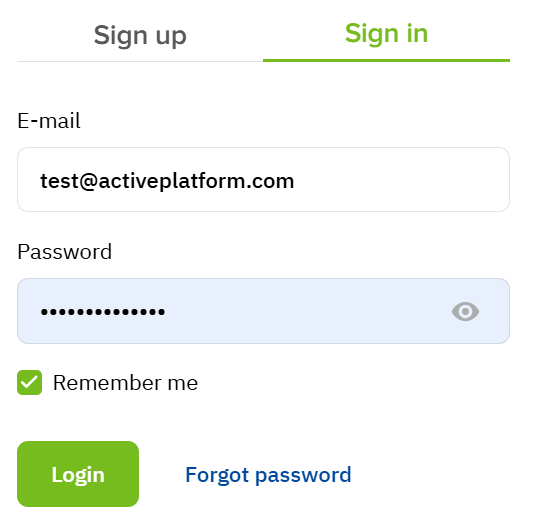
Session time without saving the login - controls the expiration time of a user session in the client interface when the Remember me feature is enabled.
User without saving the login option
-
After authorization, a token with an expiry date of 30 minutes is created.
-
Each time a page is refreshed or a request is made, a new token is created, valid for the next 30 minutes.
-
If the user does not perform any actions in the system, the session ends after 30 minutes of inactivity.
-
When active (at least one user action every 30 minutes) the maximum session duration is 4 hours starting from login, after which re-authorization is required.
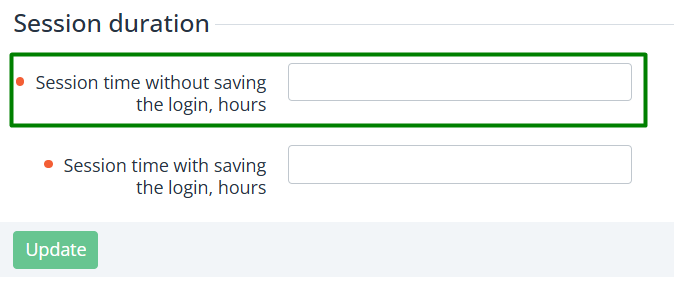
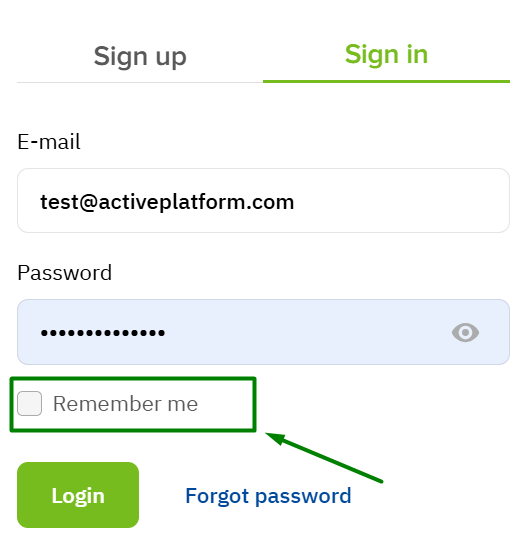
Session time with saving the login is set by the Operator Control Panel user in hours. Controls the expiration of a user session in the client interface when the Remember me feature is turned off.
User with saving the login option
-
After authorization, a token with an expiry date of 8 hours is created.
-
The session automatically ends 8 hours after login, regardless of user activity.
Manager login via username login (spoof)
When a manager logs in to a user account using the spoof login function, the same rules apply as for logging in without the saving login option: the session is limited to 30 minutes of inactivity and a maximum of 4 hours of active operation.