

Deactivating a User
Deactivation of a User for a specific Account is used to terminate User's access to the Customer Control Panel of the selected Account only. Deactivation / activation of a User is possible if the Global status of the User is Active (see Global Deactivation of a User).
Global deactivation of a User (see Global Deactivation of a User) is used to terminate User's access to the Customer Control Panel of all Accounts, regardless of User's status for a specific Account.
Detaching a User from required Account (see Detaching a User) also terminates User's access to the Customer Control Panel, but this operation does not delete all User's information in the Customer Control Panel for the selected Account.
To deactivate a User for an Account:
- Sign in to the Operator Control Panel.
- On the Navigation Bar, go to Accounts (see Navigation). The list of Accounts is displayed (see Viewing the list of Accounts).
Click the ID or name of the required Account. The Account details page is displayed (see Viewing and updating Account's details).
- Go to the Users tab. The list of Users attached to the selected Account is displayed (see Managing Account's Users).
- On the Toolbar, click Attach User. The list of Users not yet attached to the Account is displayed.
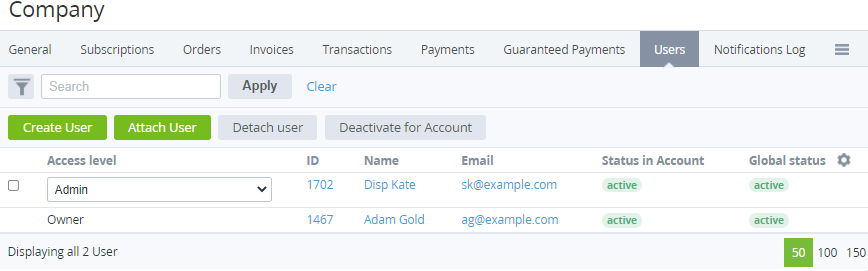
- In a row with every required User, select the checkbox.
- Click Deactivate for Account. The User's access to the Customer Control Panel of the selected Account is terminated.
- Update the page. The User's status in Account is changed from Active to Inactive.
To activate a User for an Account:
- In a row with every required User, select the checkbox.
- Click Activate for Account. The User's access to the Customer Control Panel of the selected Account is restored.
- Update the page. The User's status in Account is changed from Inactive to Active.