
To create a Subscription discount:
-
Go to Discounts (see Navigation). The list of discounts is displayed (see Viewing the list of discounts).
-
Click Create. The New Discount page is displayed.
-
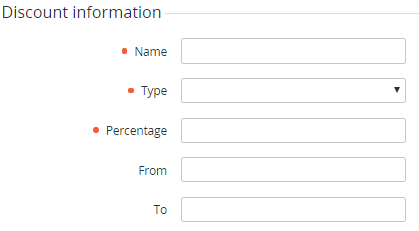
In the Discount information group:
-
In the Name field, enter the discount name. Non-unique names can be used.
-
In the Type list, select Subscription.
-
In the Percentage field, enter the discount amount as a percentage. The discount amount must be greater than 0 and not exceed 100. The discount amount may have up to two decimal places.
-
Optionally, in the From and To fields, enter the period of the discount.
-
-
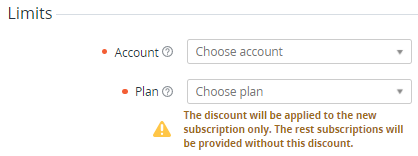
In the Limits group:
-
In the Account list, select the required account that can use the discount.
-
In the Plan list, select the required plan to which the discount can be applied.
-
-
Click Create. The new discount is created and displayed in the list.
After a subscription-type discount is created, you will no longer be able to select a different customer or plan. Once applied, a subscription-type discount is also linked to a specific subscription.
For operations available for discounts of all types, see Managing a discount.