
In the list of all requests, you can view requests with the New status that are created by either unregistered users or registered users not associated with an account. Before sending a proposal to such customers, you first need to attach them to an account and/or user.
You can send a proposal immediately for quotes created by registered users associated with an account.
In this article:
Attaching an account
To attach a customer to an account:
-
Go to Quotes (see Navigation). The list of requests for a quote is displayed (see Viewing the list of quotes).
-
Click the ID or name of the required request for a quote. The quote details page is displayed (see Viewing quote details).
-
On the quote page, click Attach account at the top.
-
Select New account (if you need to create a new account for this customer) or Existing account (if you need to attach a customer to an existing account):
-
For New Account, click Go to account creation.
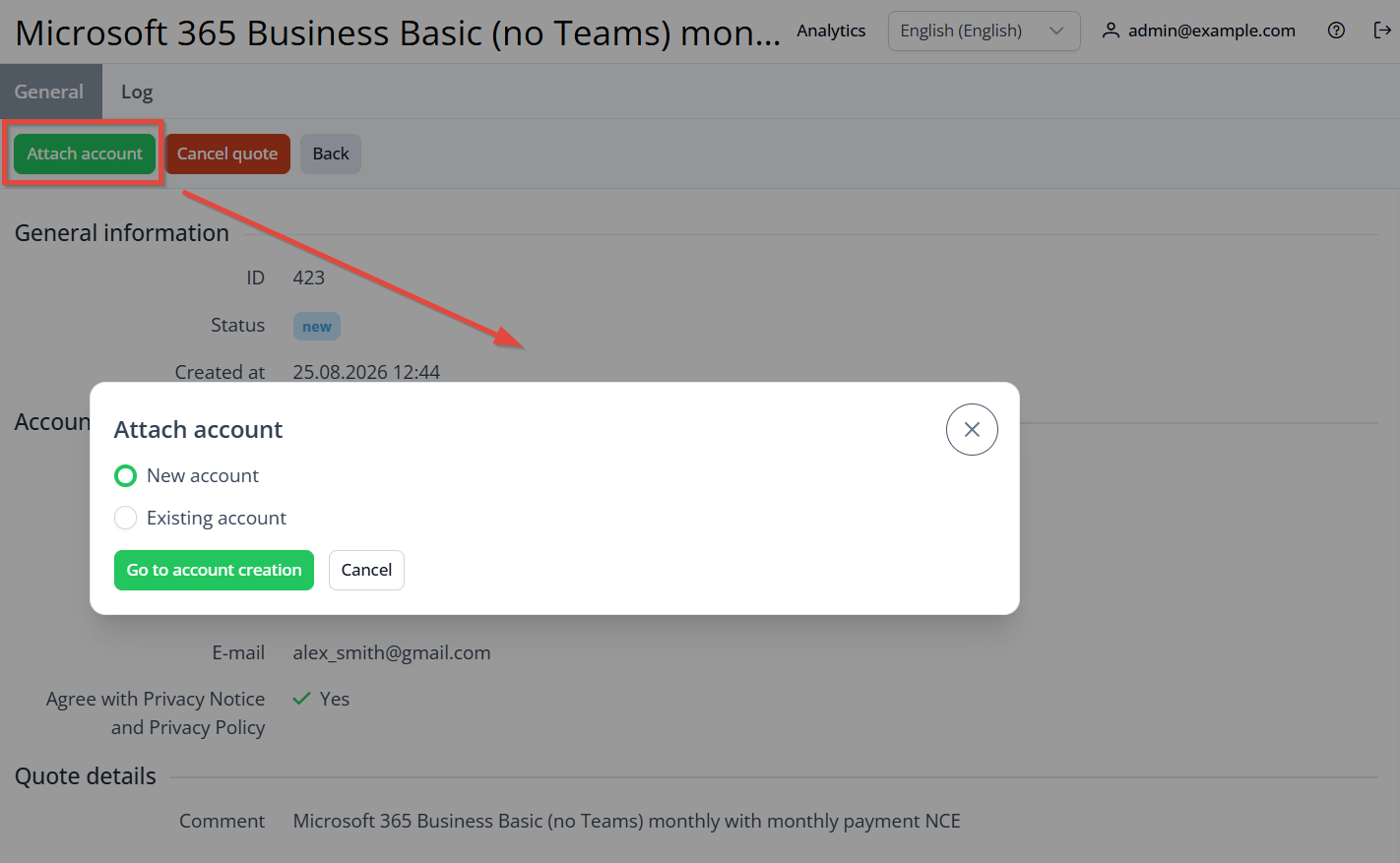
You will be directed to the Account creation page where you will need to fill in all the required information (see more in Creating an account). -
For Existing account, you need to select an existing user (or create a new one for this customer beforehand), select an account, and click Save.
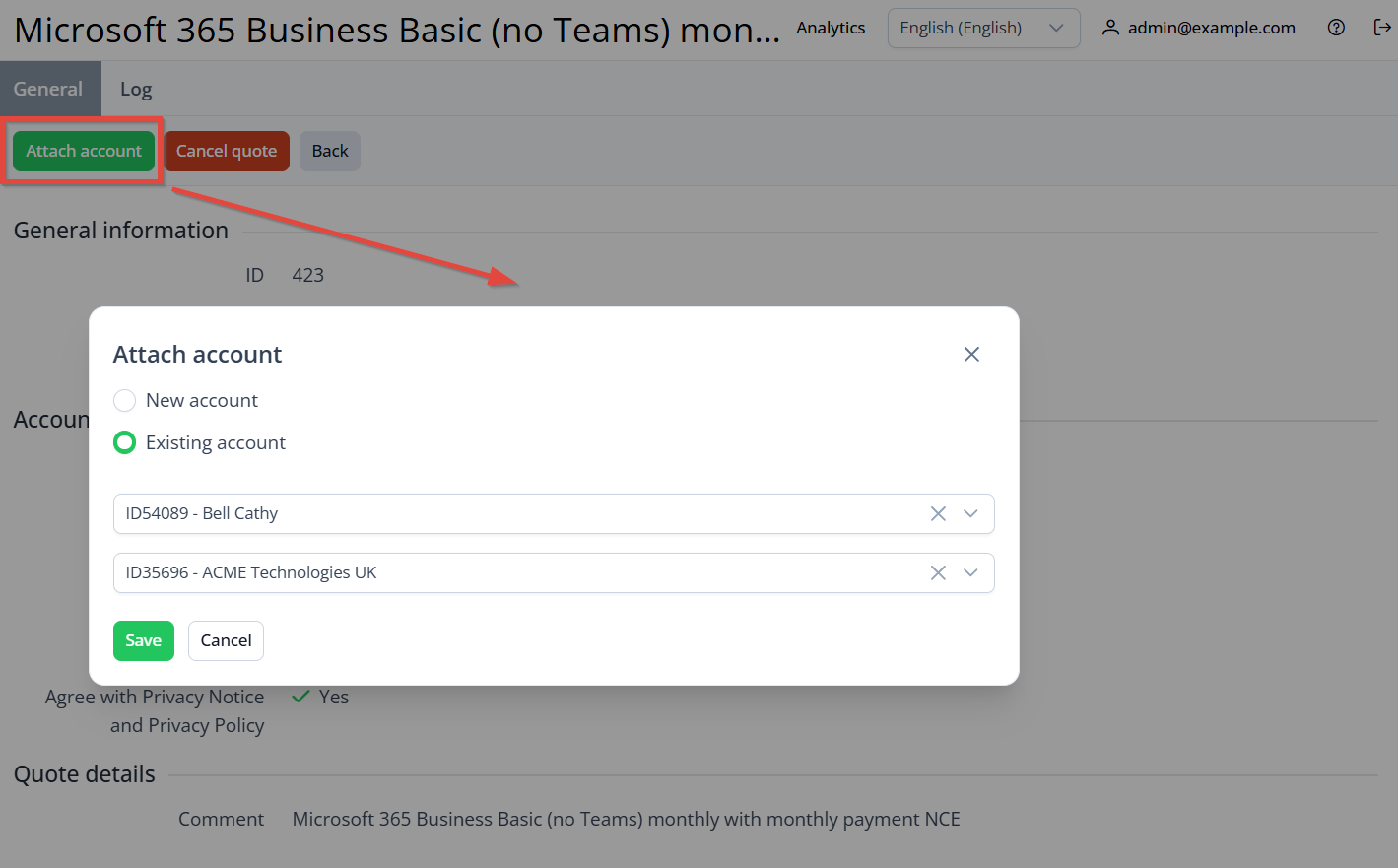
-
If a request for quote was created by a registered user not associated with an account, this user will be automatically selected in the Select user dropdown.
The client will be attached to the account, and the request will move to the Pending status. You will now be able to proceed with sending a proposal for this client.
Sending a proposal
To send a proposal to the customer in response to a request for quote:
-
Go to Quotes (see Navigation). The list of requests for a quote is displayed (see Viewing the list of quotes).
-
Click the ID or name of the required request for a quote. The quote details page is displayed (see Viewing quote details).
-
On the quote page, click Add proposal.
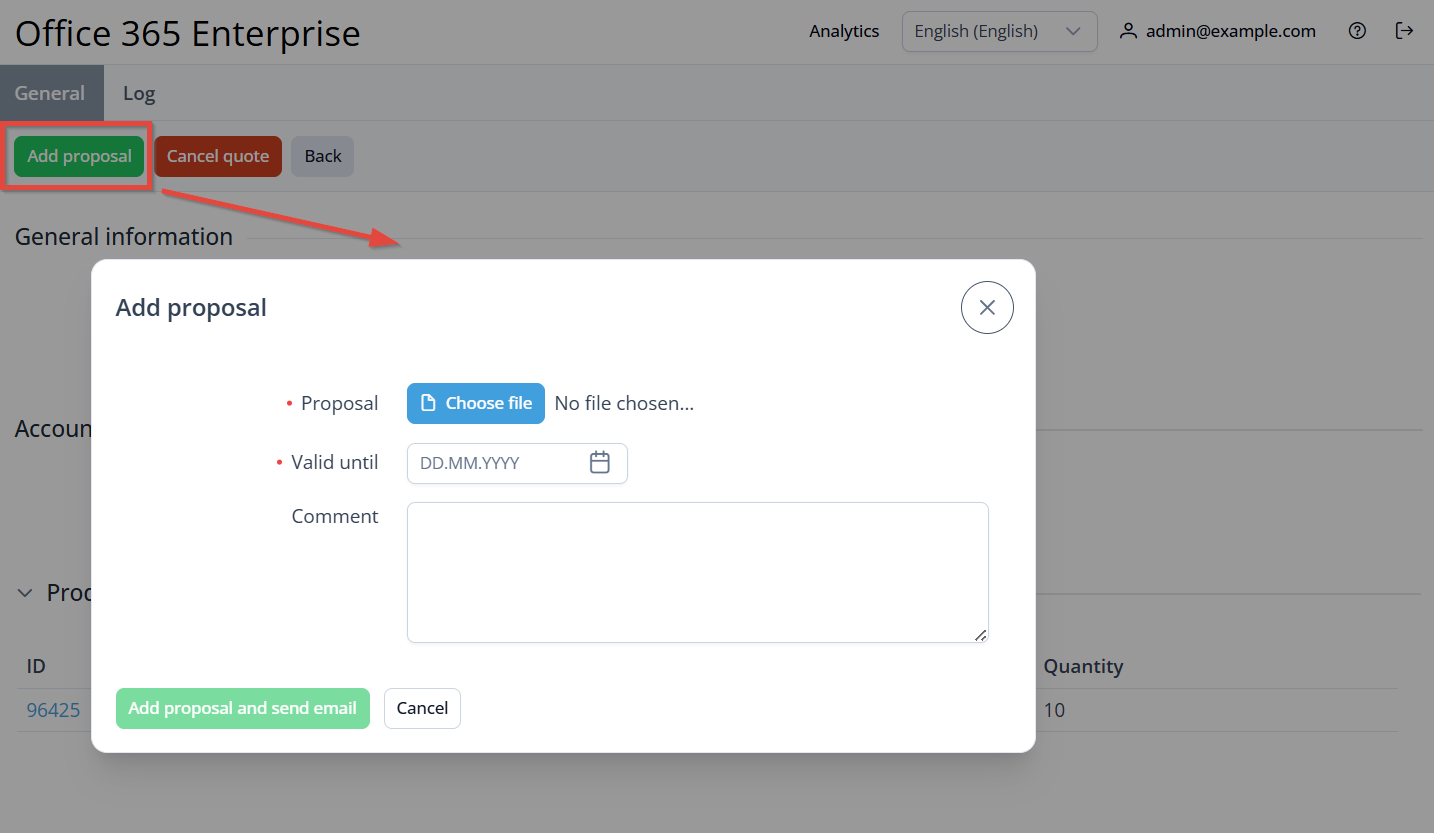
-
In the pop-up window, enter the following details:
-
Upload the proposal file.
-
The uploaded file must be no larger than 3 MB.
The following formats are supported: pdf, doc, docx, xls, xlsx, ppt, pptx, txt, csv.
b. In the Valid until field, specify the deadline for the customer to accept the proposal.
c. Optionally, in the Comment field, enter any additional information.
-
Click Add proposal and send email.
After the proposal is sent, you can decline it before the deadline. The customer can accept or decline the proposal before the deadline as well (see Quotes). If they don’t respond in time, the proposal expires. After that, the customer can only create a new request.
To ensure the customer receives the proposal, configure the Request for quote changed notification event handler (see Creating an event handler).