
Any changes in notification templates on the root or T1 reseller level are not delegated to any other resellers.
The following operations are available for viewing and updating a notification template:
View and update notification template parameters
To view and update the notification template parameters:
-
Go to Notification Templates (see Navigation). The list of notification templates is displayed (see Viewing the list of notification templates).
-
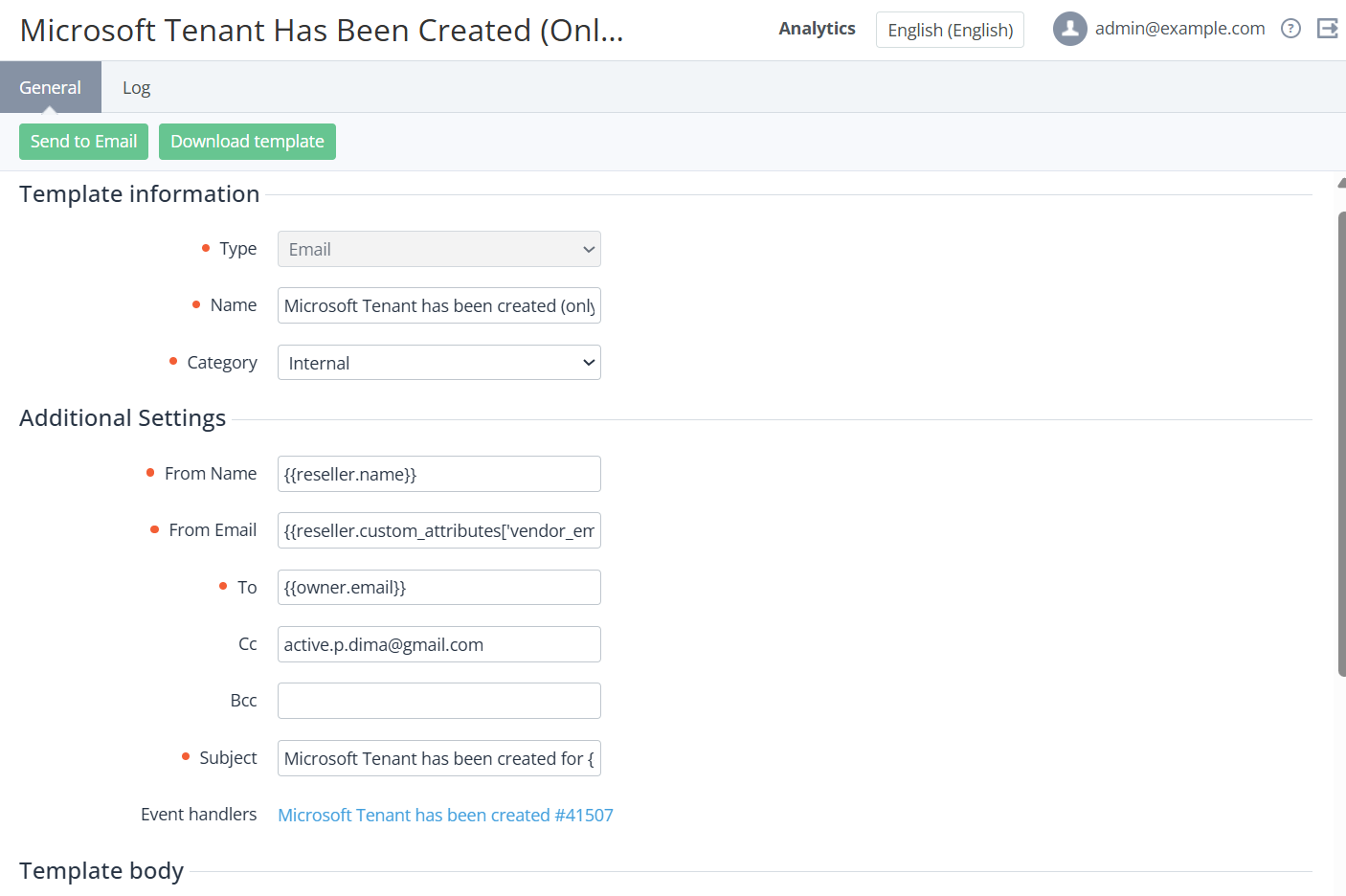
Click the ID or name of the required template. The notification template details page is displayed. The notification template details page includes the following tabs:
-
General — general information about the notification template (see Creating a notification template) including the list of event handlers created using this notification template.
-
Log — the history of the notification template changes (see Viewing an object log).
-
-
If it is necessary to update the notification template:
-
On the General tab, edit the options available for changing.
-
Click Update.
-
Preview email notification template
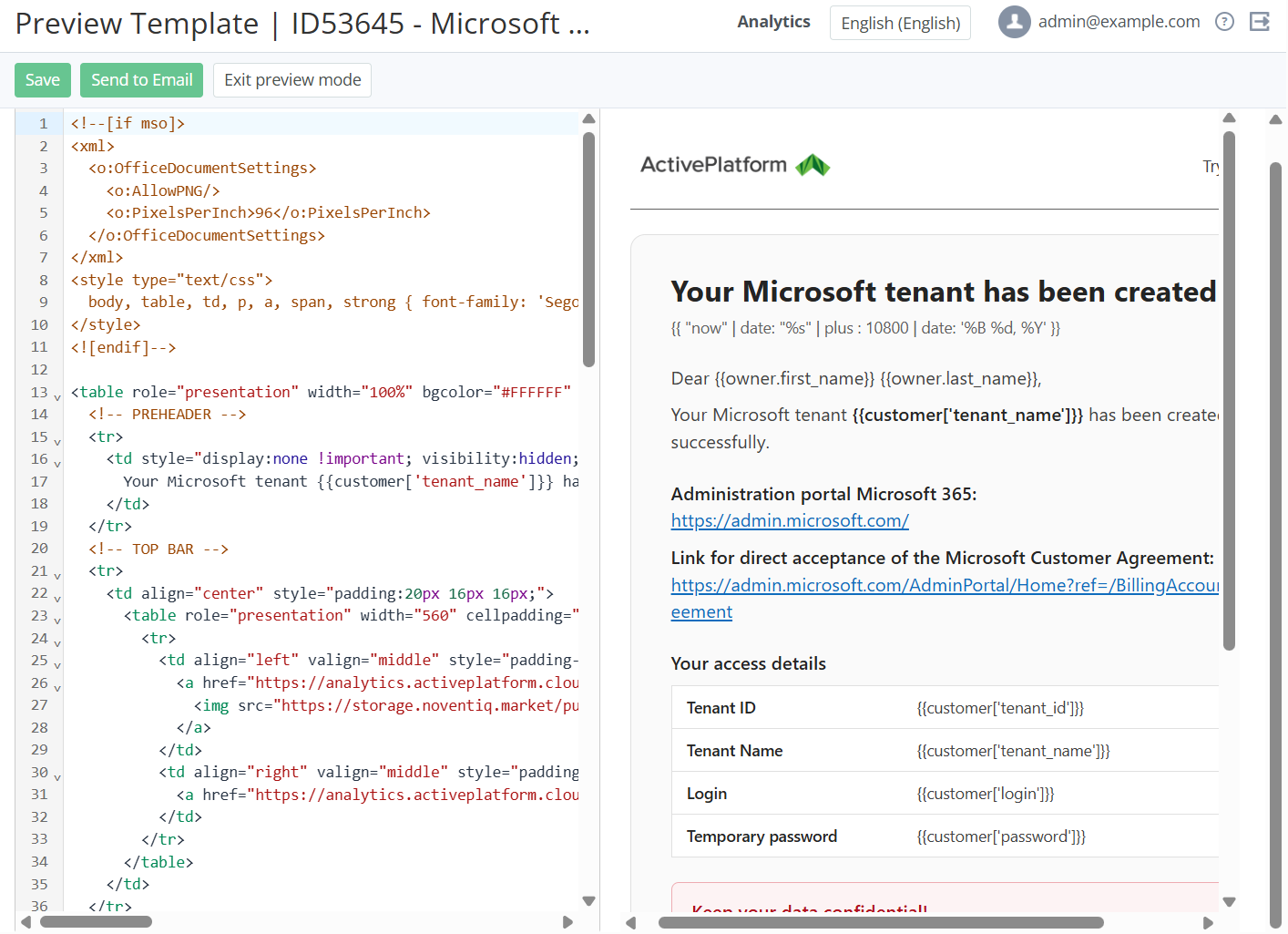
In the preview mode, you can edit an email notification template and see how it looks for recipients, taking into account HTML formatting. Placeholders are displayed as is, without displaying the corresponding information.
To enter the preview mode, on the email notification template details page, in the Template body group, click Switch to preview mode. The Preview Template page is displayed with two sections:
-
The left section – Template body – contains the source text of an email notification template and the time when it was saved.
-
The right section – Preview – displays a notification as it looks for recipients, taking into account HTML formatting.
If it is necessary to update a notification template:
-
In the left section, change the source text of a template.
-
In the right section, check the appearance of a notification.
-
Click Save.
To return to the notification template details page, click Exit preview mode.
Send test email notification
You can send a test email notification to see how it looks in the recipient's email client:
-
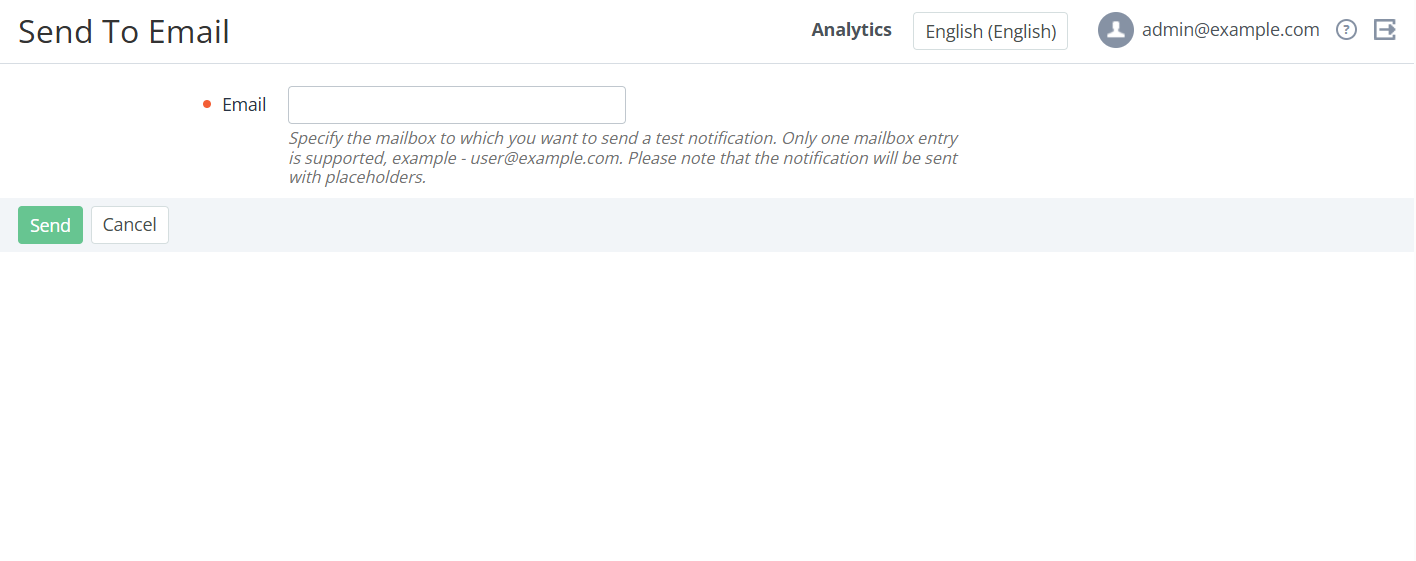
On the email notification template details page or in the preview mode, click Send to Email. The Send to Email page is displayed.
-
In the Email field, enter the email of a test notification recipient.
-
Click Send. The platform sends a test notification according to the selected notification template, taking into account HTML formatting.
In a test notification, placeholders are displayed as is, without displaying the corresponding information, and the sender name is missing.
Save email notification template to HTML file
To save an email notification template to an HTML file on your local computer, on the email notification template details page, click Download template.
An HTML file is downloaded with the name containing the template ID and the time it was saved.