
You can generate and upload to an FTP-server CDR files with all charges (see Charges) closed during the previous day. A CDR file is generated if the FTP-server settings are correct. Separate CDR files are generated for each charge. Created files are grouped by folders with the following name: dd-mm-yyyy — a date of the file creation, for example, 01-12-2016.
The name of file has the following structure: CDR_{{charge.id}}_{{dd-mm-yyyy}}, where:
-
charge.id— the unique identification number of a charge. -
dd-mm-yyyy— the creation date of the file.
In this section:
Configuring the connection to an FTP-server
To configure the connection to an FTP-server:
-
Go to Reports (see Navigation). The Sales Reports page is displayed.
-
Go to the CDR Generation tab.
The report will not be generated if the settings of an FTP-server are not configured.
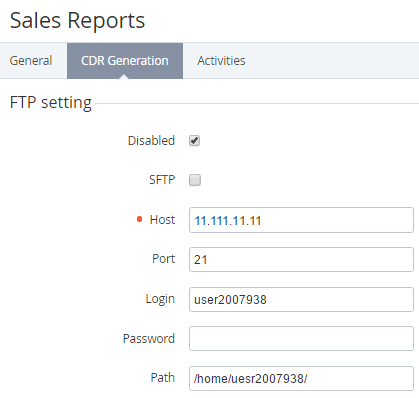
-
Set the following options:SFTP — if the checkbox is selected, the SSH File Transfer Protocol is used for connection and file transfer.Host — the address of the FTP-server.Port — the port of the FTP-server.Login — the login for connecting to the FTP-server.Password — the password for connecting to the FTP-server.Path — the path to the folder on the FTP-server, in which the reports will be stored.To deactivate connection to the FTP-server without deleting the connection settings, select the Disable checkbox.
-
Click Update.
The structure of the report
To configure the template of the report:
-
Go to Reports (see Navigation). The Sales Reports page is displayed.
-
Go to the CDR Generation tab.
-
In the Template body field, configure the template of the report. You can use placeholders (see Using placeholders) related to the current charge.
The Template body field supports Liquid — an open language of templates. For more information, see https://shopify.github.io/liquid/basics/introduction/.
-
Click Update.