
The closed orders report includes orders (see Managing Orders) that changed their status to Completed or Cancelled during the selected period.
To create the closed orders report:
-
Go to Reports (see Navigation). The Sales Reports page is displayed.
-
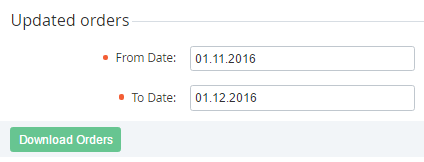
In the Updated Orders group, set the period of the report using the From Date and To Date fields.
-
Click Download Orders. The report will be sent to your email in the MS Excel format.
The closed orders includes the following information:
-
Order Number — the number of the order (for example, SO000329), which is configured in the system settings (see System Settings).
-
Order Type — one of the types of order (see Managing orders).
-
Order Total — the total amount of the order.
-
Order Status — one of the statuses of the order (see Viewing the list of orders):Completed.Cancelled.
-
Subscription Name — the name of the subscription that was ordered.
-
Order Date — the date of the order.
-
Expiration Date — the date, by which the order must be paid. The date is calculated based on the grace period, which is set on the plan class page (see Creating a service term).
-
Manager — the name of the manager (see Staff management), to which the account relates.
-
Customer Class — the account class of the account, which made the order.
-
Updated at — the date and time of the order update.
-
Closed At — the date and time when the order got the Completed or Cancelled status.
-
Plan category ID — the ID of the plan category (see Managing plan categories), to which the order relates.
-
Plan category key — the key of the plan category (see Managing plan categories), to which the order relates.
-
Plan Category — the name of the plan category (see Managing plan categories), to which the order relates.