
In this article:
Viewing the list of plan periods
To view the list of plan periods:
-
Go to Plans (see Navigation). The list of plans is displayed (see Viewing the list of plans).
-
Click the ID or name of the required plan. The plan details page is displayed (see Viewing and updating a plan).
-
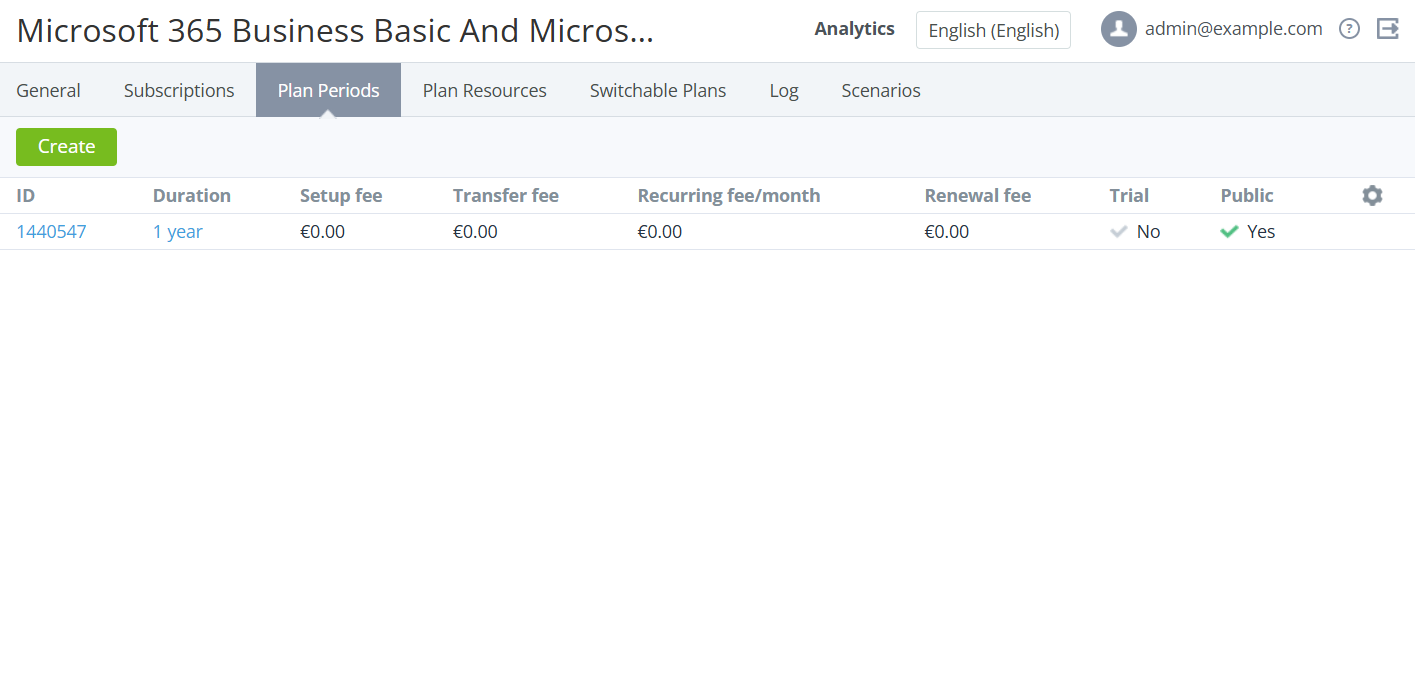
Go to the Plan Periods tab. The list of plan periods with their retail price is displayed.
Adding a new plan period
To add a new plan period:
-
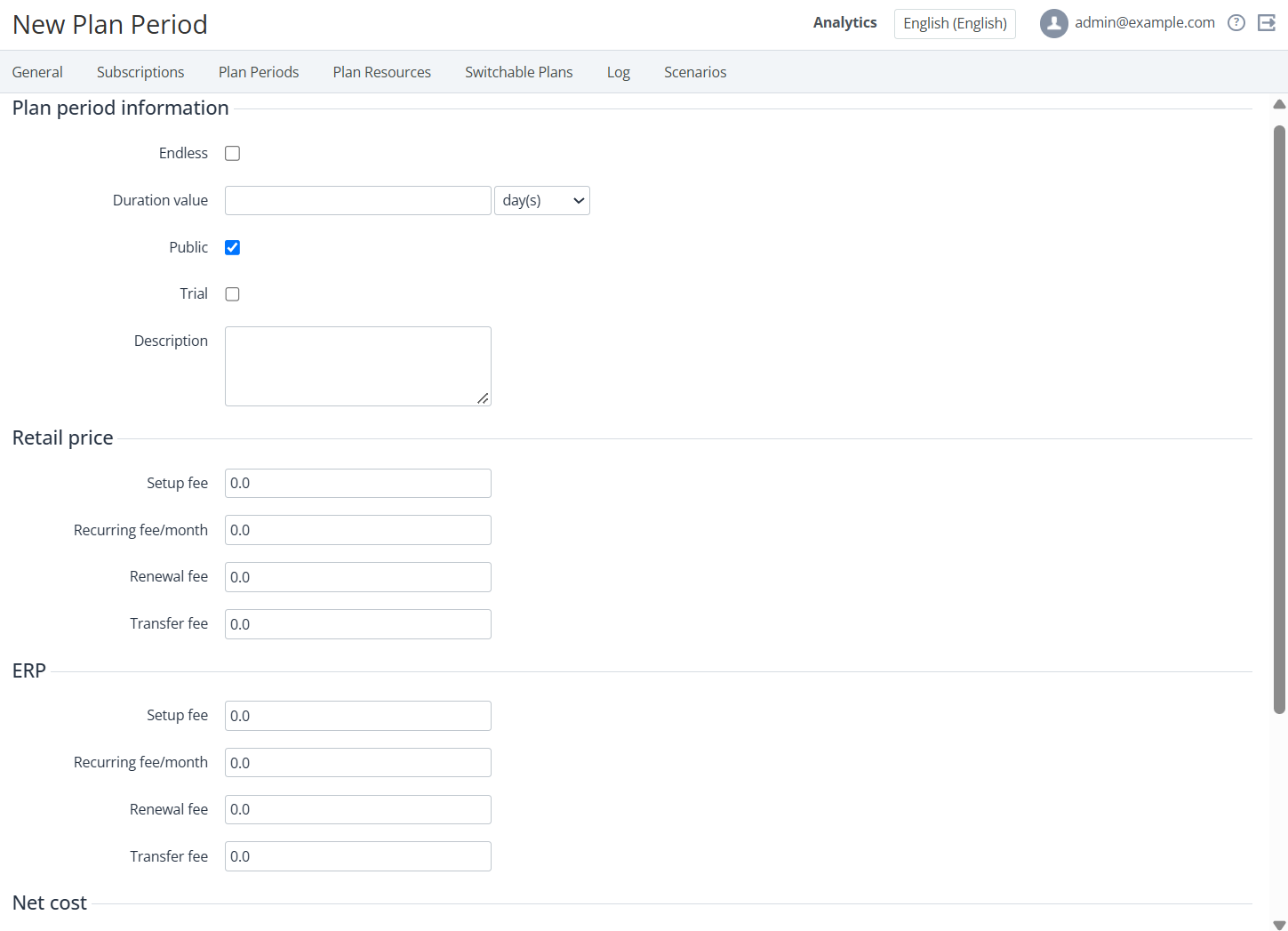
On the Plan Periods tab, click Create. The New Plan Period page is displayed with the following groups of elements:
-
Plan period information.
-
Retail price.
-
ERP.
-
Net cost.
-
-
Configure the plan period similar to entering its information during the plan creation process (see Plan Periods).
-
Click Create. The new plan period is created and is displayed on the Plan Periods tab. The automatic markup of the plan is not changed.
Updating a plan period
To update a plan period:
-
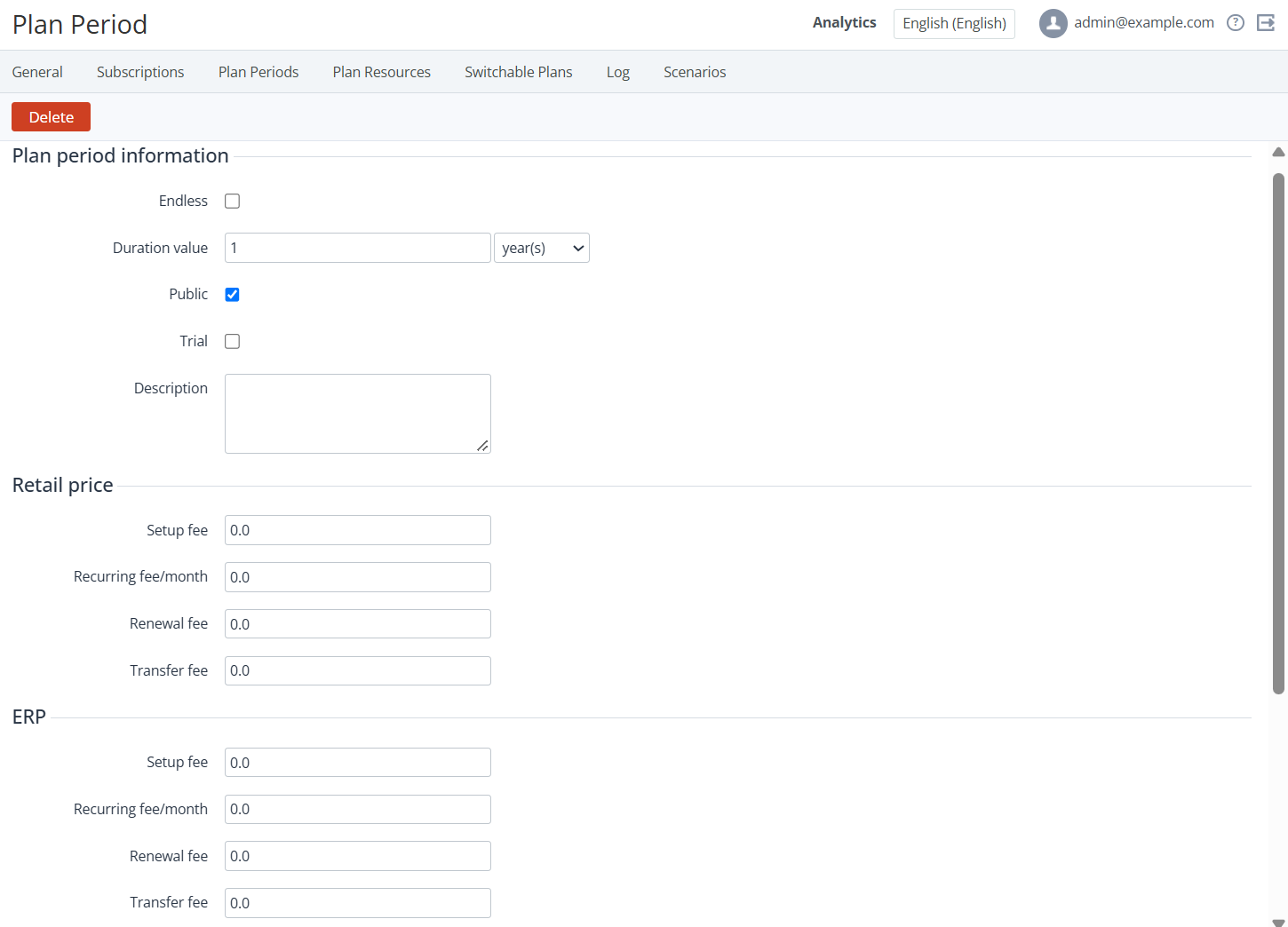
On the Plan Periods tab, click the ID or duration of the required plan period. The plan period details page is displayed with the following groups of elements:
-
Plan period information.
-
Retail price.
-
ERP.
-
Net cost.
-
-
Configure the plan period similar to entering its information during the plan creation process (see Plan Periods) but with the following specifics:
-
When the retail prices for a plan period are changed, the automatic markup for the plan is turned off (see Viewing the price list). The only exception is plans with the Pay as you go (external) billing type. In this case, the prices set at the plan period page are ignored, and the automatic markup is enabled.
-
When only the ERP price for a plan period is changed, the automatic markup for the plan is not changed. The retail prices for a plan period are automatically recalculated according to the automatic markup if it is applied to the ERP price (see Viewing the price list).
-
When only the net costs for a plan period are changed, the automatic markup for the plan is not changed. The retail prices for a plan period are automatically recalculated according to the automatic markup if it is applied to the net cost (see Viewing the price list).
-
-
Click Save.
Deleting a plan period
A plan period can be deleted if only there are no subscriptions to this plan period in any status, except for Deleted.
To delete a plan period:
-
On the Plan Periods tab, click the ID or duration of the required plan period. The plan period details page is displayed.
-
Click Delete and confirm the action.